
Create Special and Drop Ship Purchase Orders
| Content |
|---|
For items that you sell and can be easily ordered but do not want to stock in the warehouse, you can generate special purchase orders at the time of processing the sales order for a customer.
Connected Business allows you to drop ship items on order or automate the process by setting up the item as for Drop Ship. In the Sales Order screen, you can tag the item as for Drop Ship and process Drop Ship purchase orders from the Supplier module.
Also, with the improved drop shipping functionality, changes made on an existing drop ship order will be automatically reflected in the linked PO. If customers call in to make sudden adjustments in the order, either to increase or decrease the quantity of items ordered and reserved, you are given the ability to make the necessary changes on the same order and will automatically update the linked PO.
Create Special Purchase Order
To create a special purchase order,
- Open a sales order document by going to Customer module > Order > Find Order.
- Select the SO to be processed and the Sales Order form will be displayed.
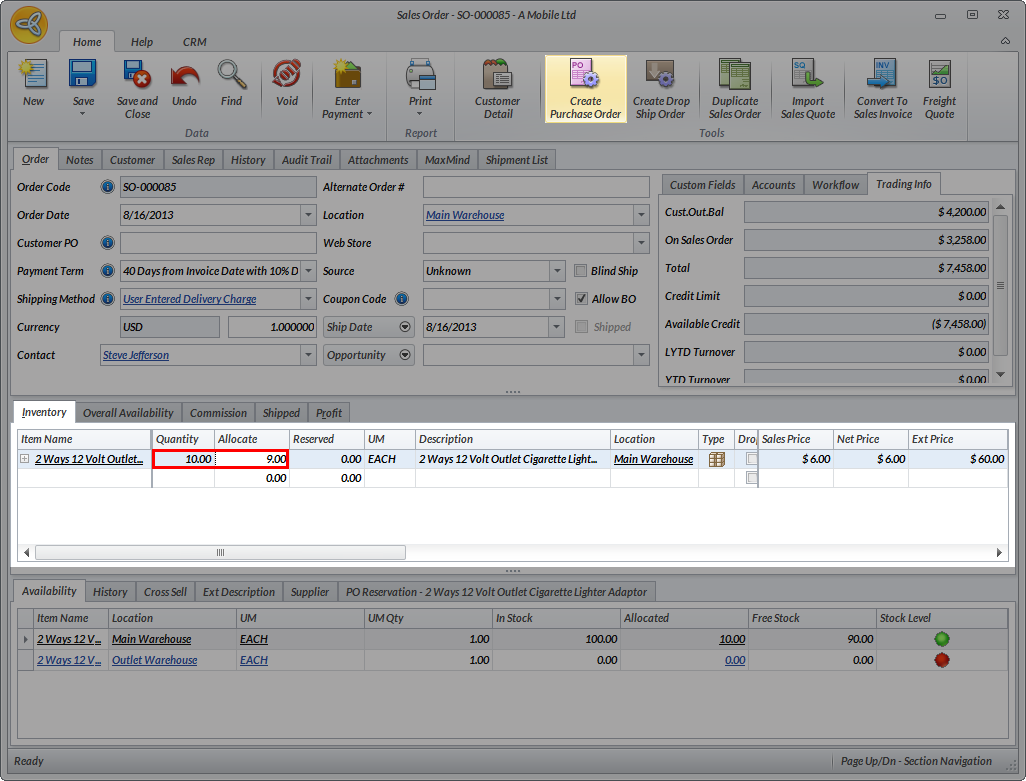
- From the Sales Order form, click on the Create Purchase Order button from the menu. The Special Order from will be displayed.
Click Image to Enlarge

You cannot create a purchase order when all items are already allocated or reserved. Purchase Orders are created when the allocated column is less than the quantity column. This applies when an item is out of stock or has been reserved or allocated to other customers.
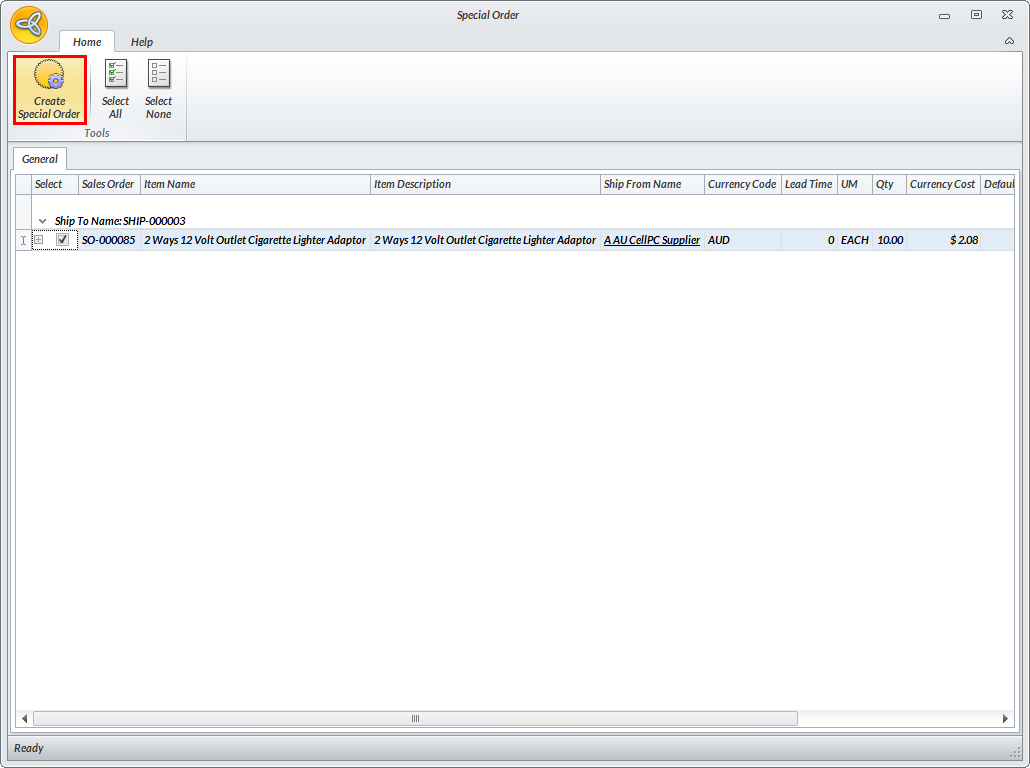
- Select the SO to be processed and click Create Special Order from the menu.
Click Image to Enlarge
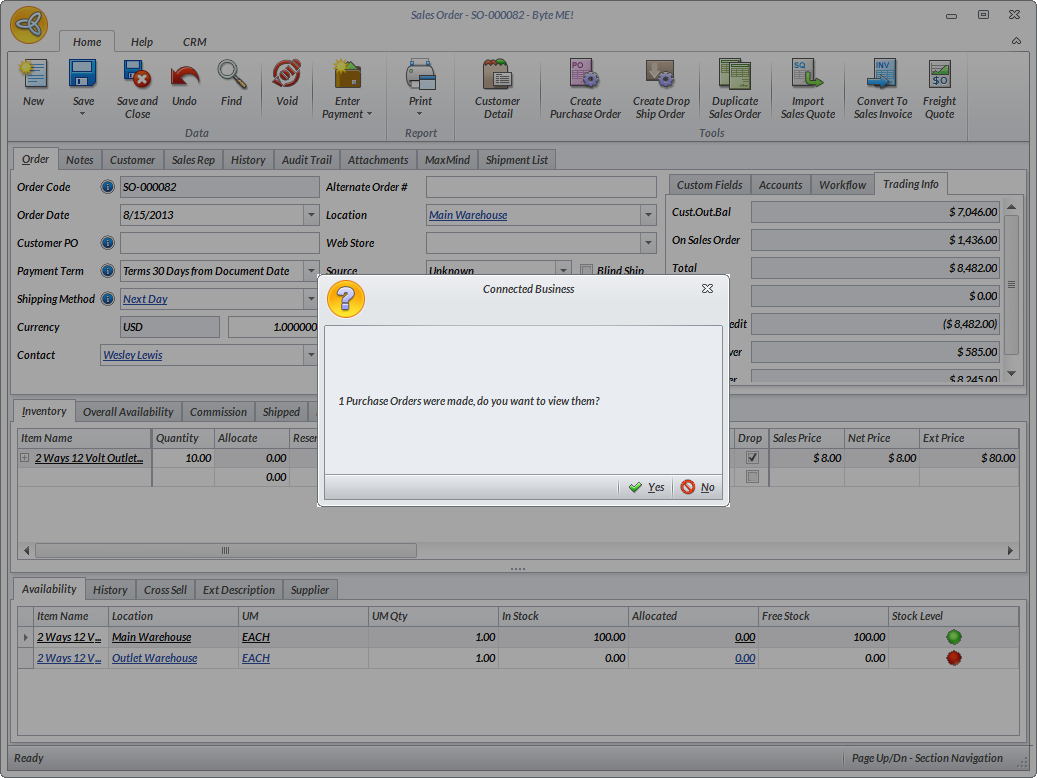
- A message prompt will be displayed indicating that a purchase order has bee made. Click Yes to view the purchase order.
Click Image to Enlarge
Tag Items (Usually Ordered From Suppliers) As Special Order
You can tag items that are usually ordered from suppliers as special order so it will be included when generating special purchase orders from Supplier > Purchases > Special Order Purchases. To do this,
- Go to the Inventory module > Item > Find Item. The list of inventory items which is grouped by type will be displayed.
- Select an item from the list to view the Item Detail form.
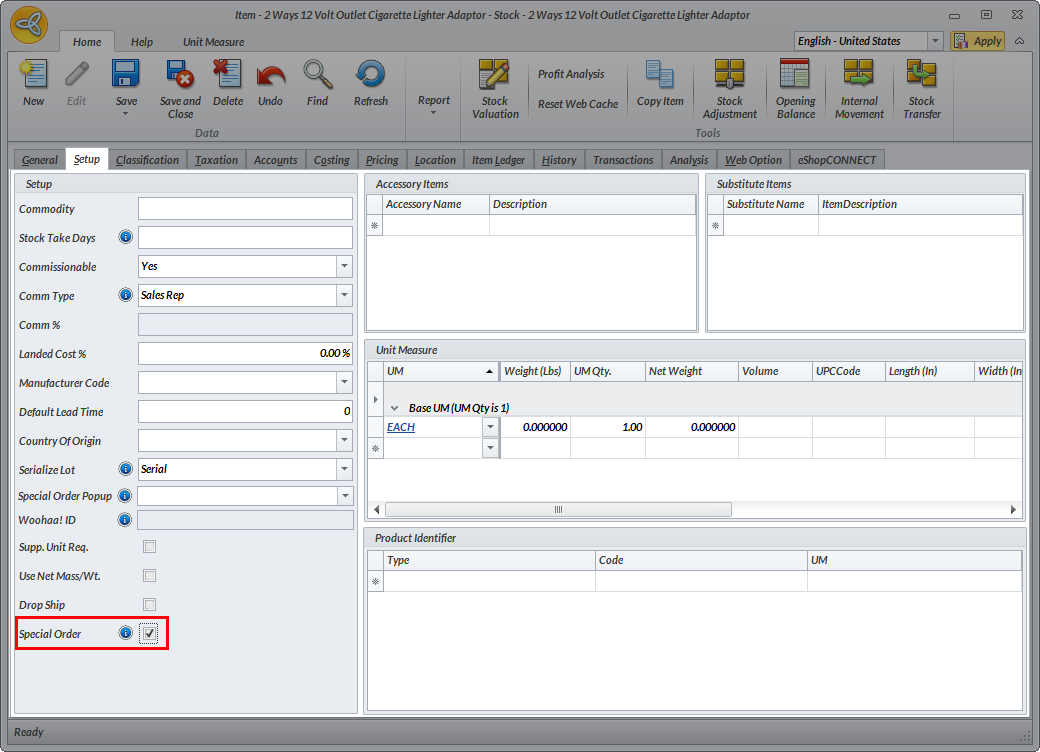
- In the Item Detail form, go to the Setup tab and tick the Special Order checkbox.
Click Image to Enlarge
- Click Save and Close to apply changes.

Create Drop Ship Purchase Order
To create a PO for a Drop Ship Order,
- Go to Customer module > Order > New Order. The list of active customers will be displayed.
- Select a customer from the Ship To Customers tab and the Sales Order form will be displayed.
- Enter a line item and indicate the quantity to be ordered.
- Tick the Drop checkbox and save the order.
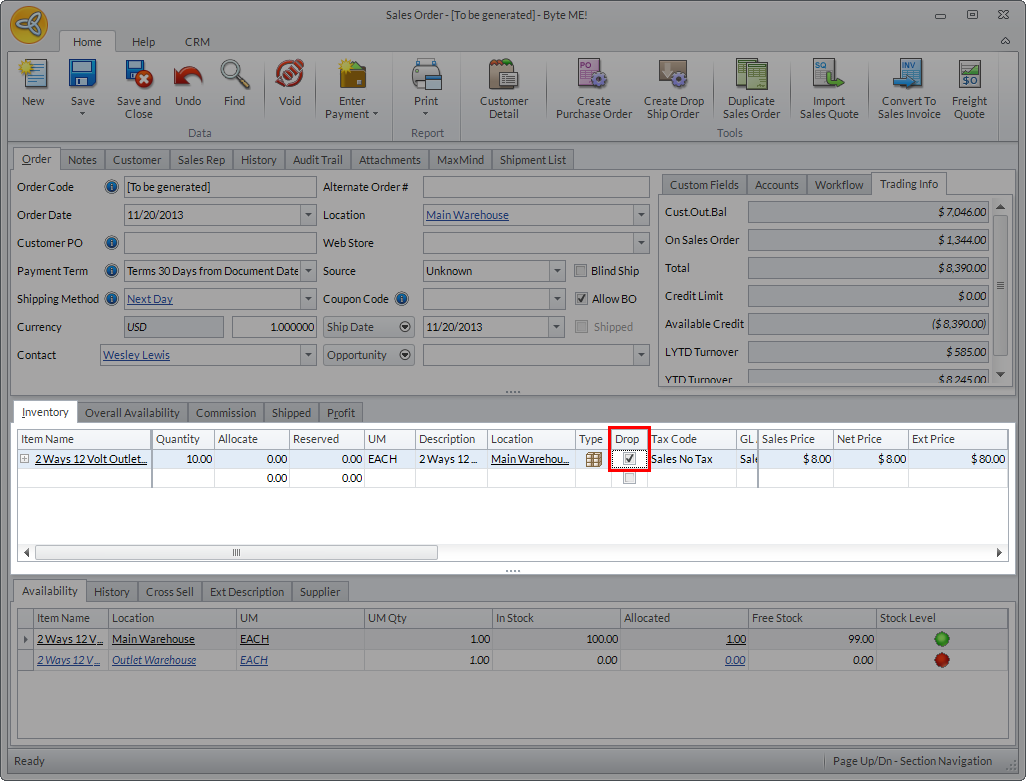
Click Image to Enlarge
- Still in the SO form, click the Create Drop Ship Order button. The Drop Ship form will be displayed.
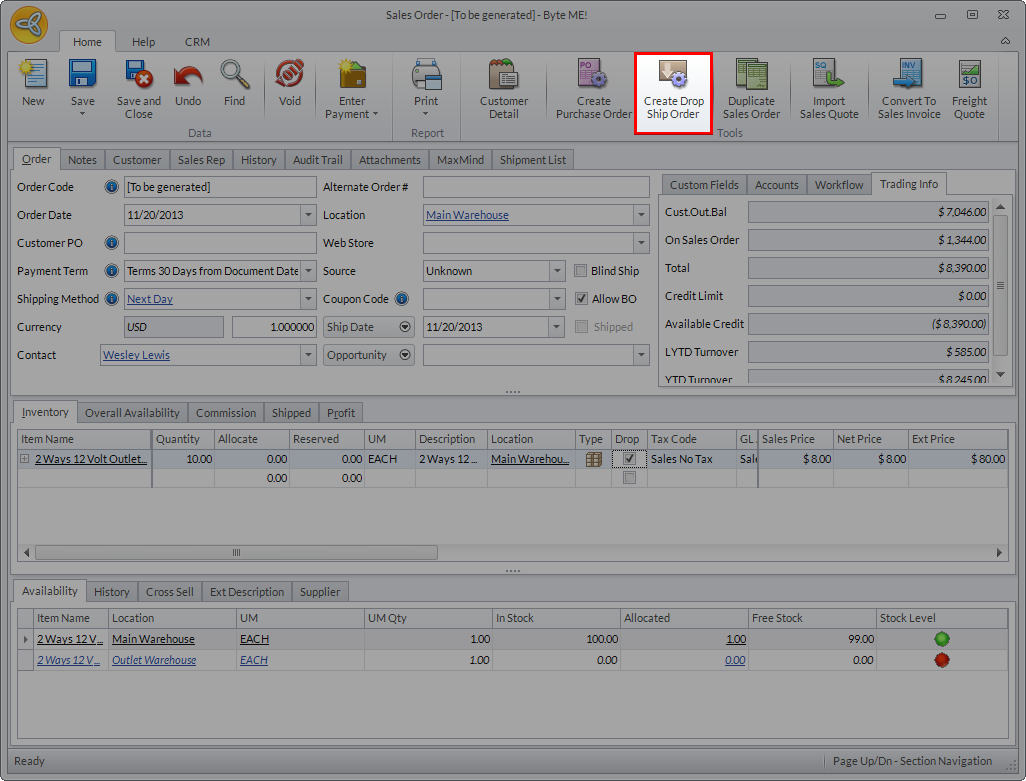
Click Image to Enlarge
- Select the SO to be processed and click Create Drop Ship Orders button to generate the PO.
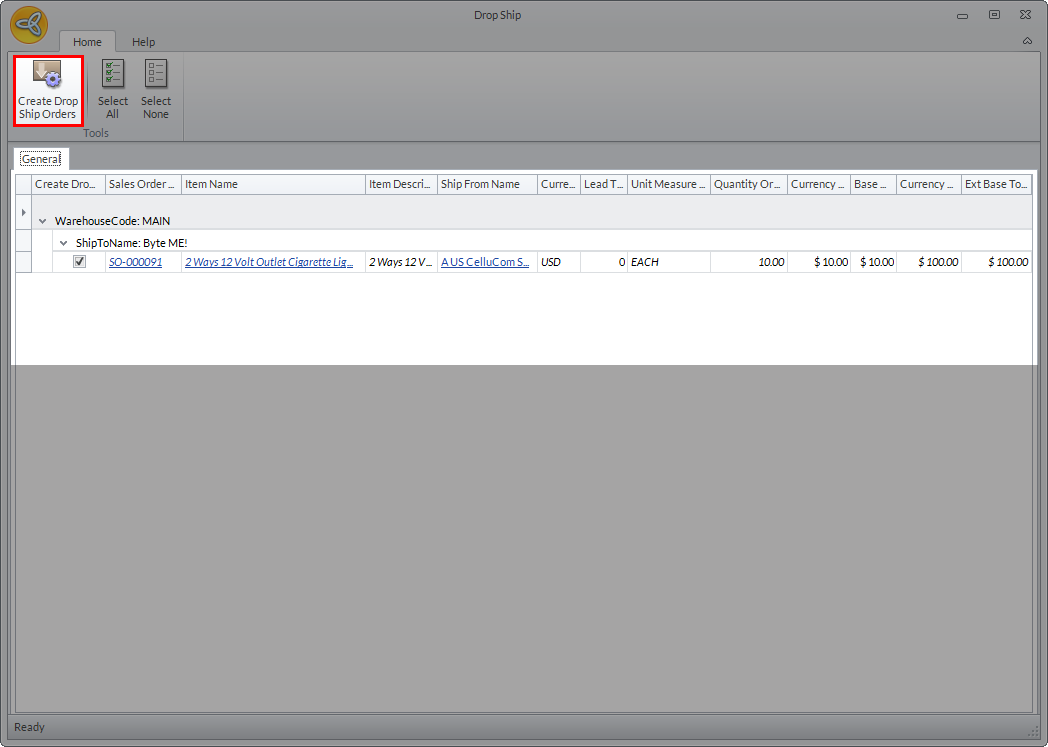
Click Image to Enlarge
A message prompt will pop up indicating that a PO has been made. Click Yes to view the PO.
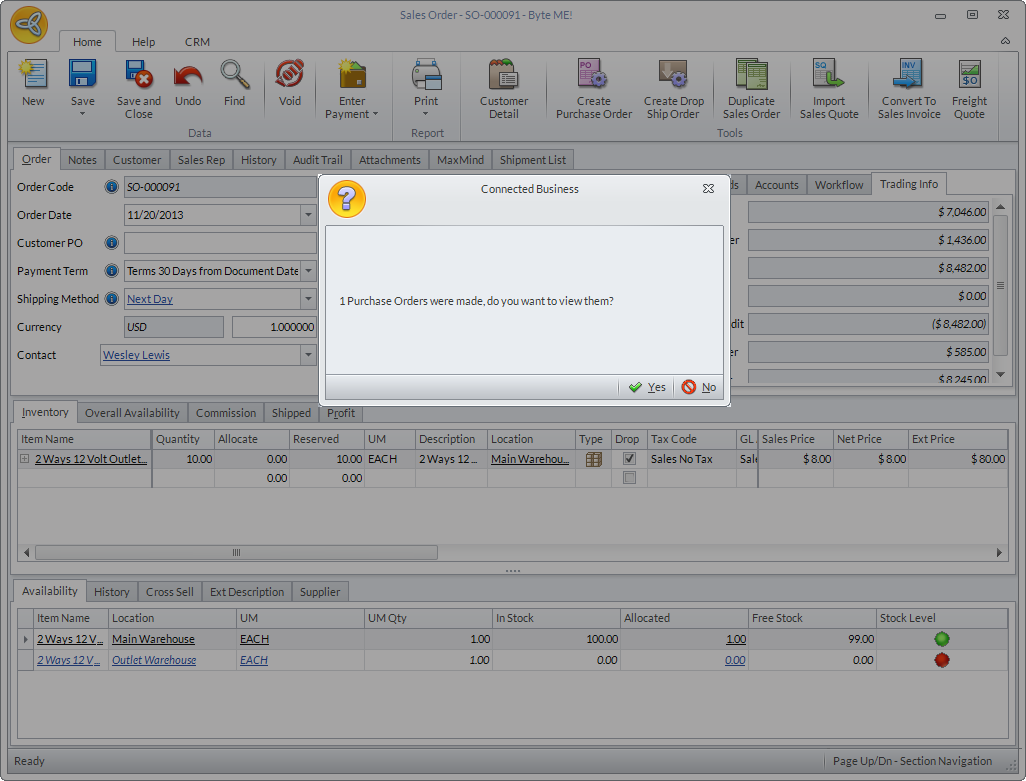
Click Image to Enlarge
Notice that, the values in the quantity ordered and quantity reserved in the PO is the same as what is on the SO. Aside from the quantity values, the customer’s default shipping information is also displayed.
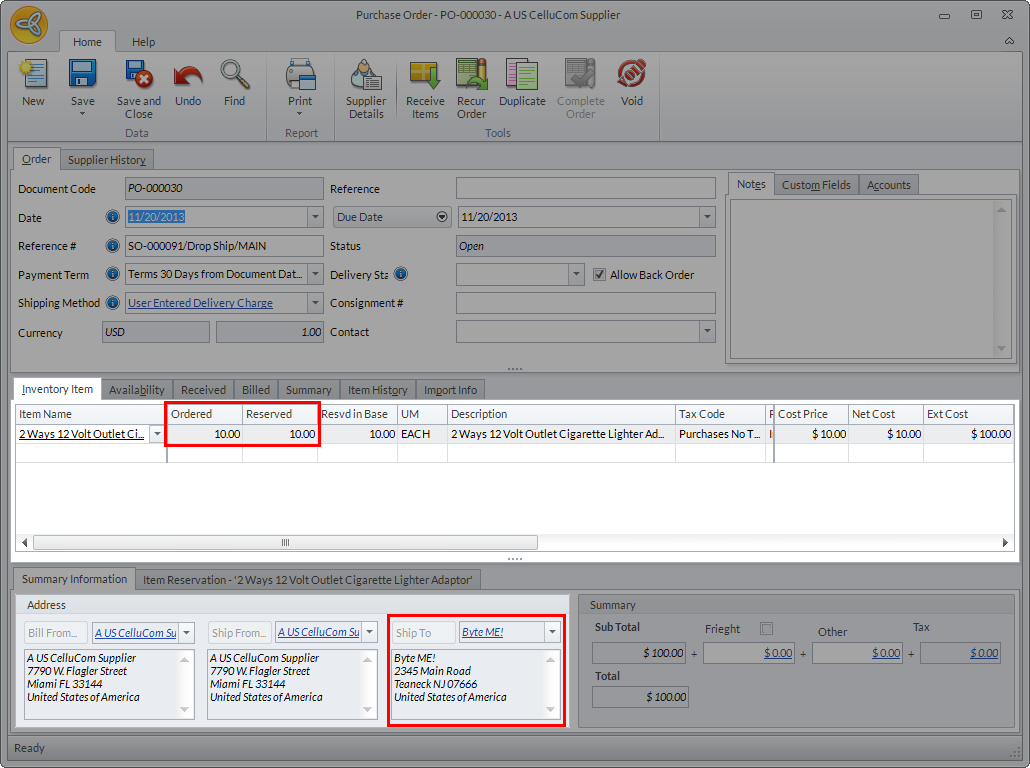
Click Image to Enlarge
Automatically Set Item for Drop Ship
For items that are usually drop shipped, you can automatically set it for Drop Ship. To do this,
- Go to Inventory module > Item > Find Item. The list of inventory items will be displayed.
- Select the item you want to automatically set for Drop Ship.
- In the Item Detail form, go to the Setup tab and tick the Drop Ship checkbox.
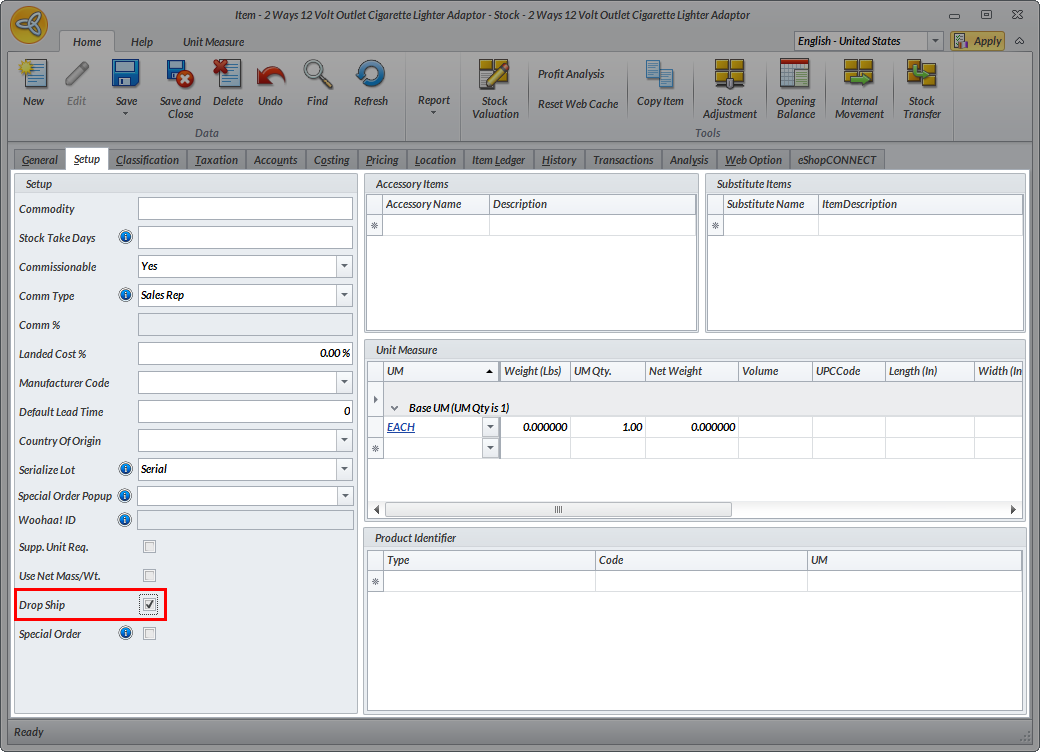
Click Image to Enlarge
- Click Save and Close to apply changes.
Drop Ship Order Adjustments
To make adjustments on an existing Drop Ship Order, open the SO and update the values in the quantity or reserved columns.
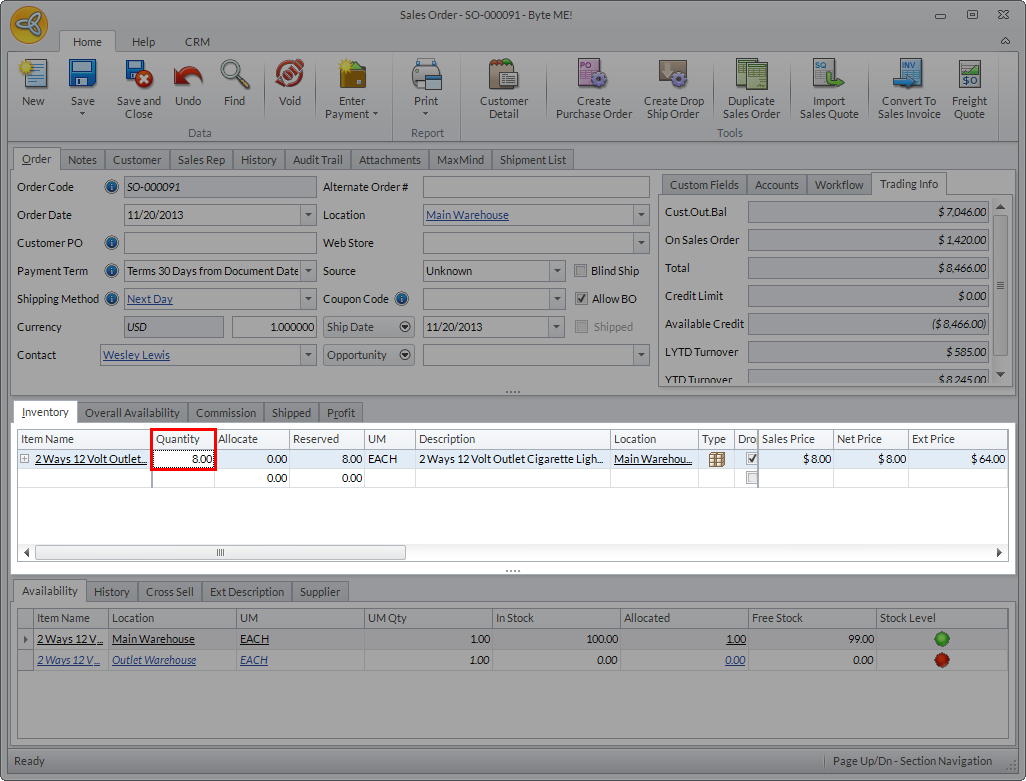
Click Image to Enlarge
This will automatically update the values entered in the PO linked to the SO.
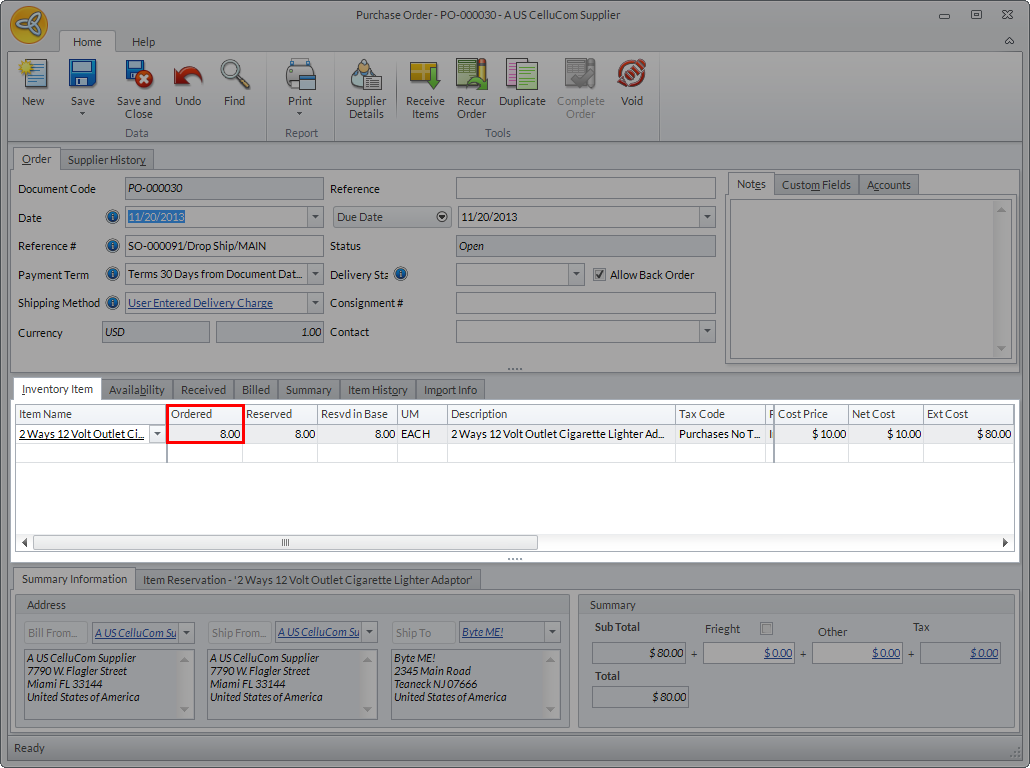
Click Image to Enlarge
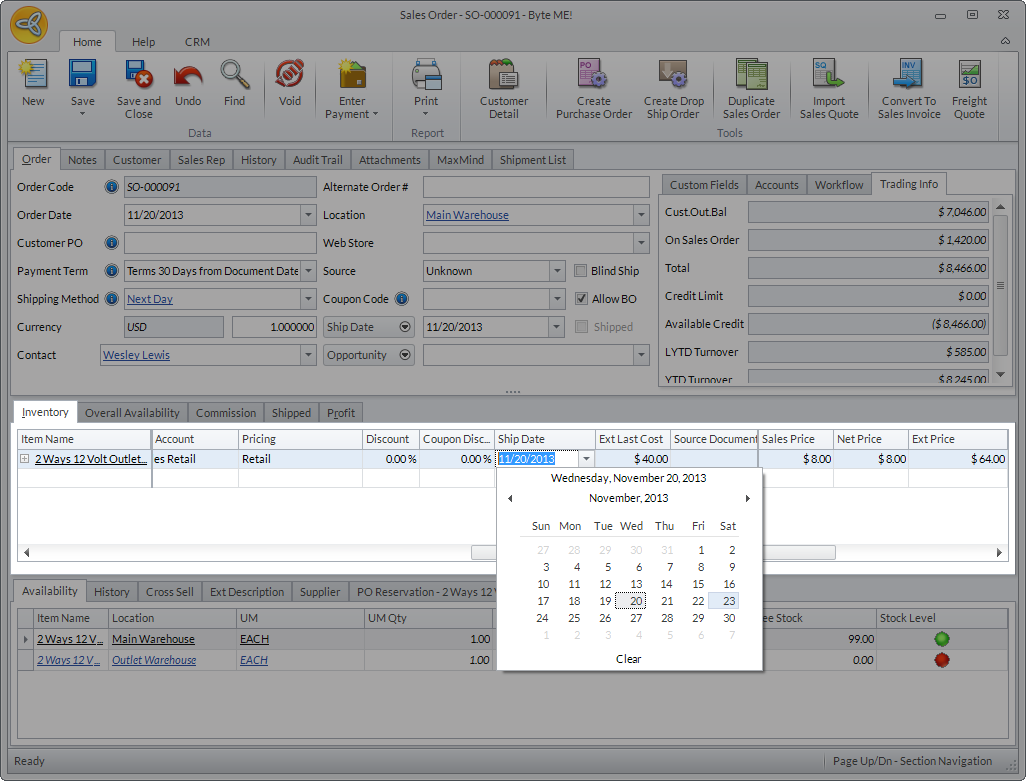
Aside from updating the values in the quantity or reserved columns, you can also change the Ship Date of the line item as needed.
Click Image to Enlarge
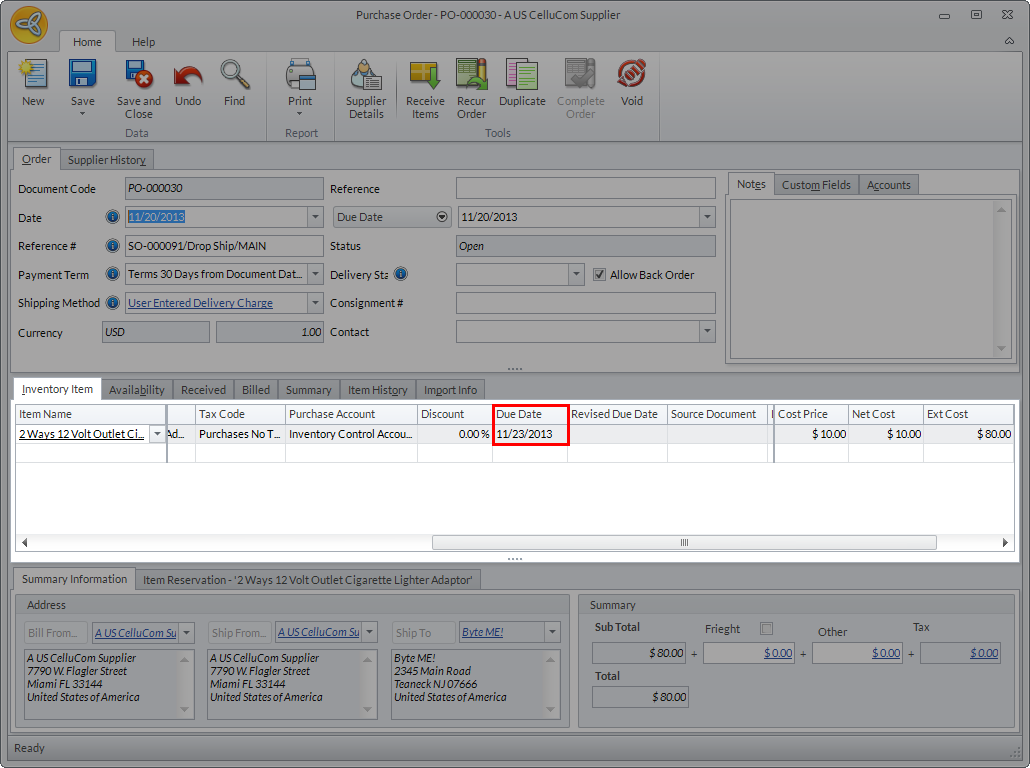
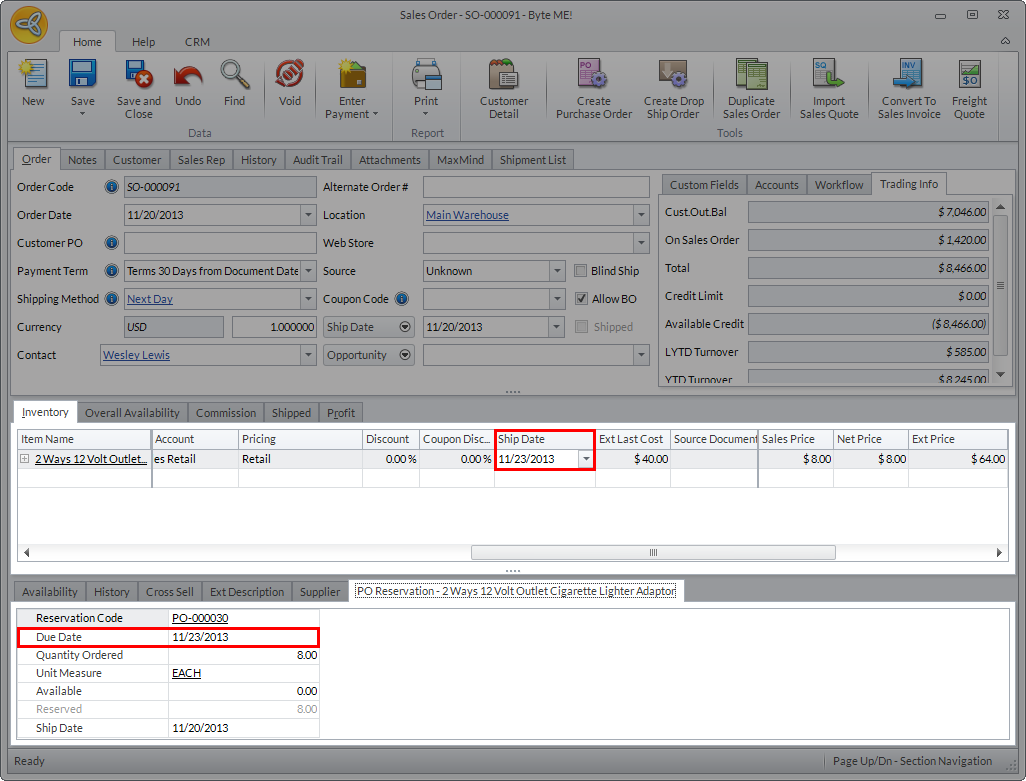
When the Ship Date is changed, the due date of the linked PO and the reservation will be updated as well.
Click Image to Enlarge
Click Image to Enlarge
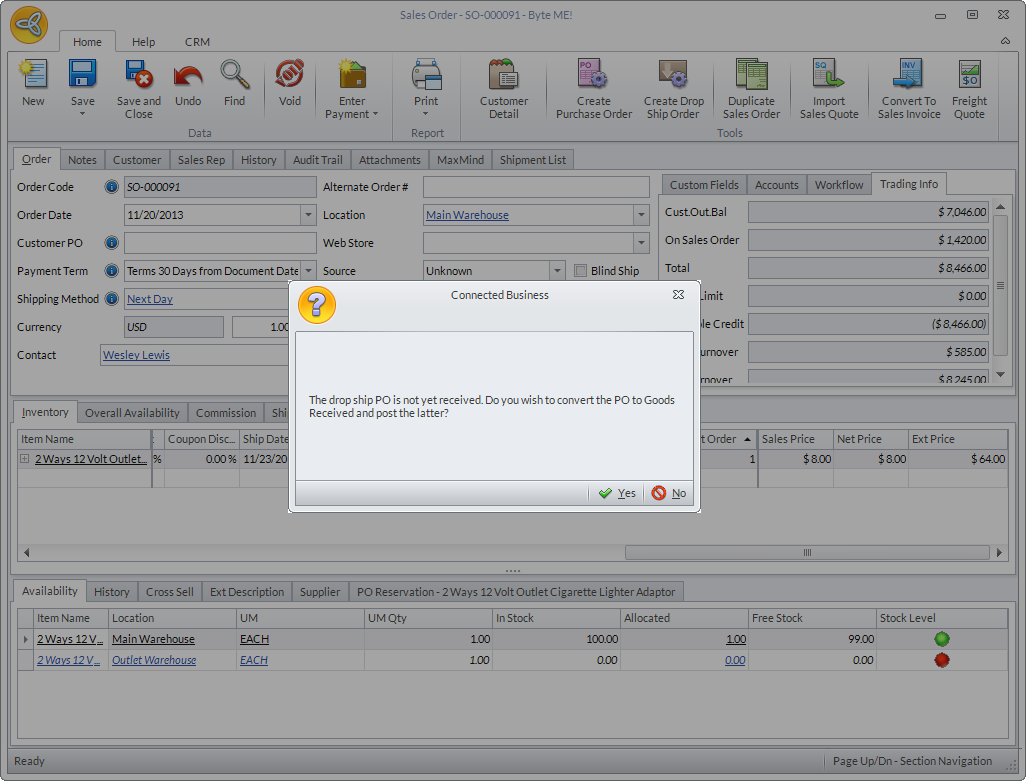
Also, if the SO is converted to invoice and the linked PO is not yet received, a message box will be displayed confirming if you want to convert the PO to GRN. Click Yes to convert the PO, otherwise, click No to just convert the SO to invoice.
Click Image to Enlarge
Void Drop Ship Order
To void or cancel a Drop Ship Order,
- Go to Customer module > Order > Find Order. Select the SO to be voided.
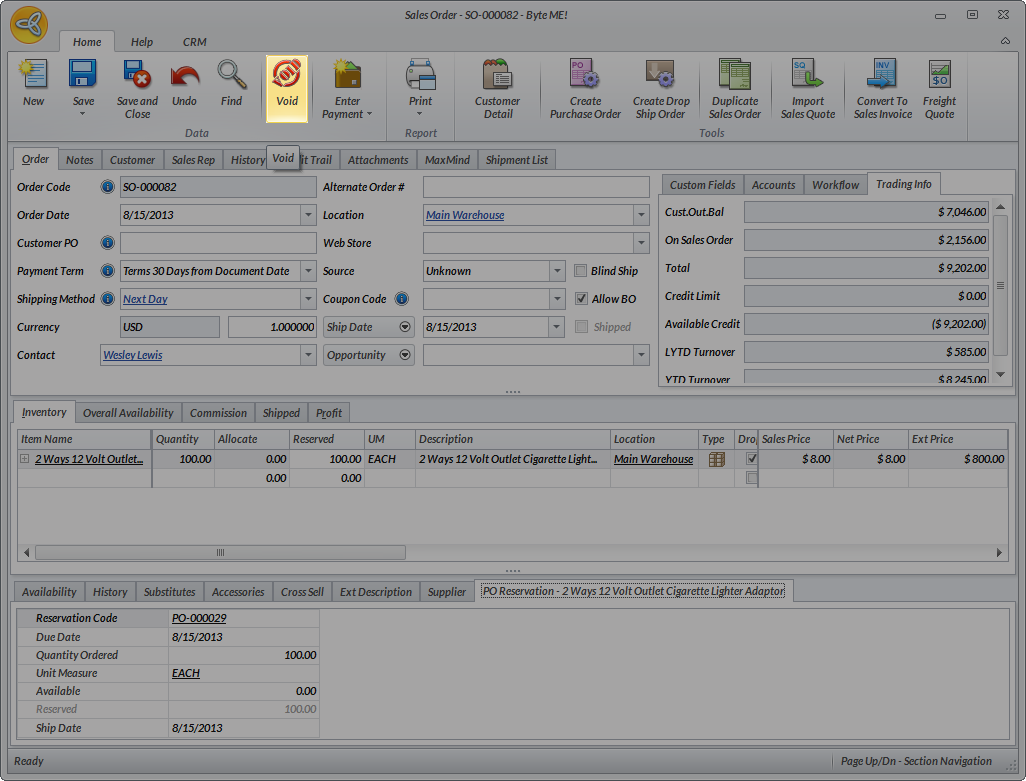
- In the Sales Order form, click the Void button from the menu.
Click Image to Enlarge
Voiding the SO will automatically void the linked PO.
- You can view the voided SO from the Sales Order History with the stage tagged as Void.
Void Linked PO on Drop Ship Order
To void or cancel the PO linked to the drop ship order,
- Go to Suppliers module > Purchases > Find Purchases.
- Select the purchase order linked to the SO.
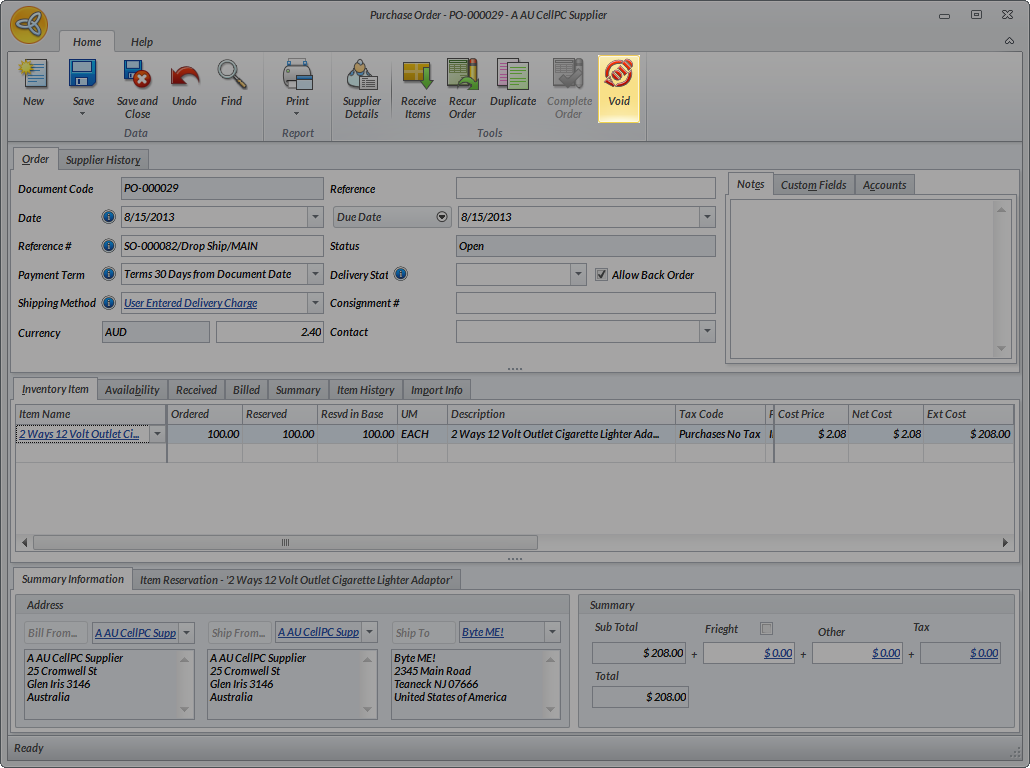
- Click the Void button from the menu.
Click Image to Enlarge
Once voided, the PO link will be removed from the SO which makes the SO an open order.
- You can view the voided PO from the Cancelled Purchase Orders tab in the Find Purchases dashboard.