
Create Purchase Order Scheme
You can create a request for purchase order scheme in the Banking Module. By setting up the purchase order from the Payment Term and Payment Term Group functions, you can access these changes on your webstore.
To create a Purchase Order Scheme,
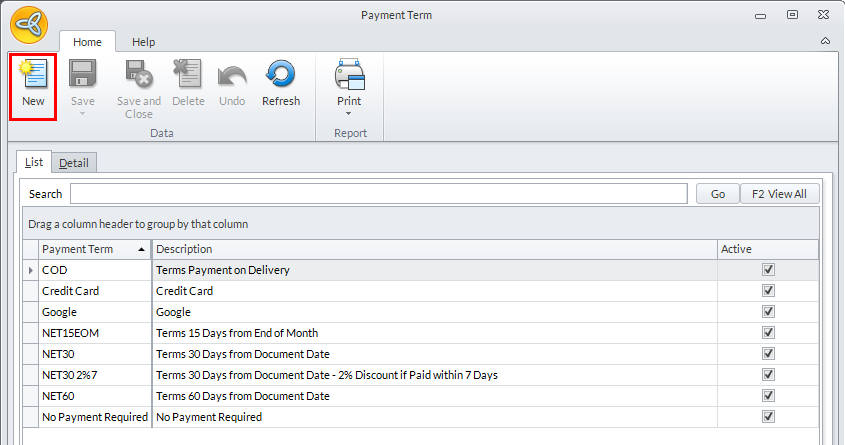
- From the Banking Module > Setup > Payment > Payment Term. The Payment Term list form will be displayed.
Click Image to Enlarge
Select New from the menu bar to create a new payment term, which you will be the Purchase Order payment term for the webstore.
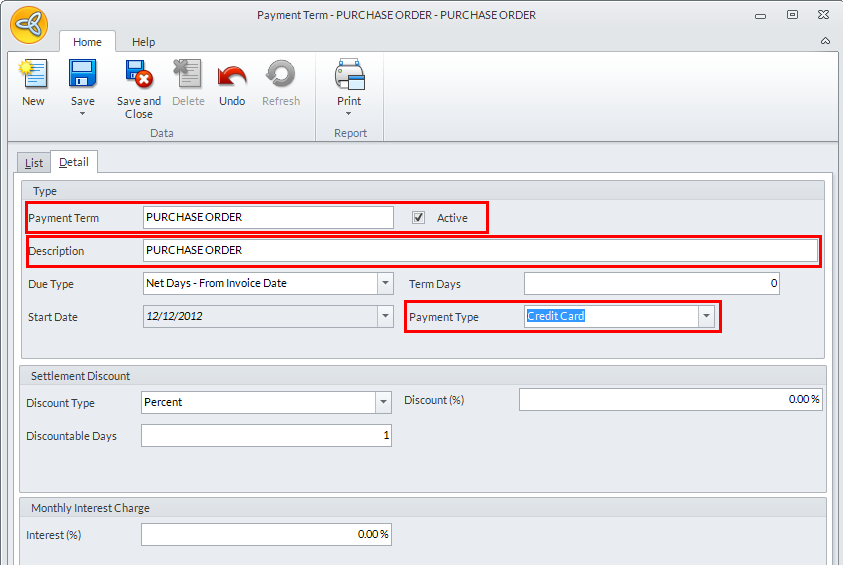
- From the Detail tab of the Payment Term form, enter PURCHASE ORDER in the Payment Term and Description fields.
Click Image to Enlarge
From the dropdown list of the Payment Type field, select Credit Card from the options. Click Save and Close from the menu bar to apply changes.

Be sure to accurately enter the "Purchase Order" text as you see it. Otherwise, this setting will not work.
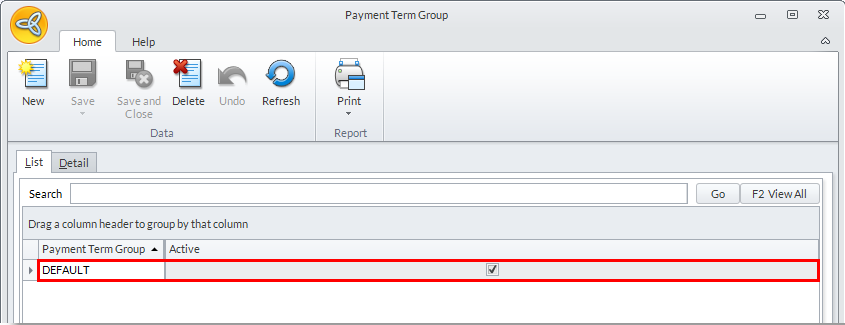
- For the next step, from the Banking Module >Setup > Payment > Payment Term Group. The Payment Term Group list will be displayed. Normally only the DEFAULT entry will be displayed. Double-click on the DEFAULT entry to display its properties in the List tab.
Click Image to Enlarge
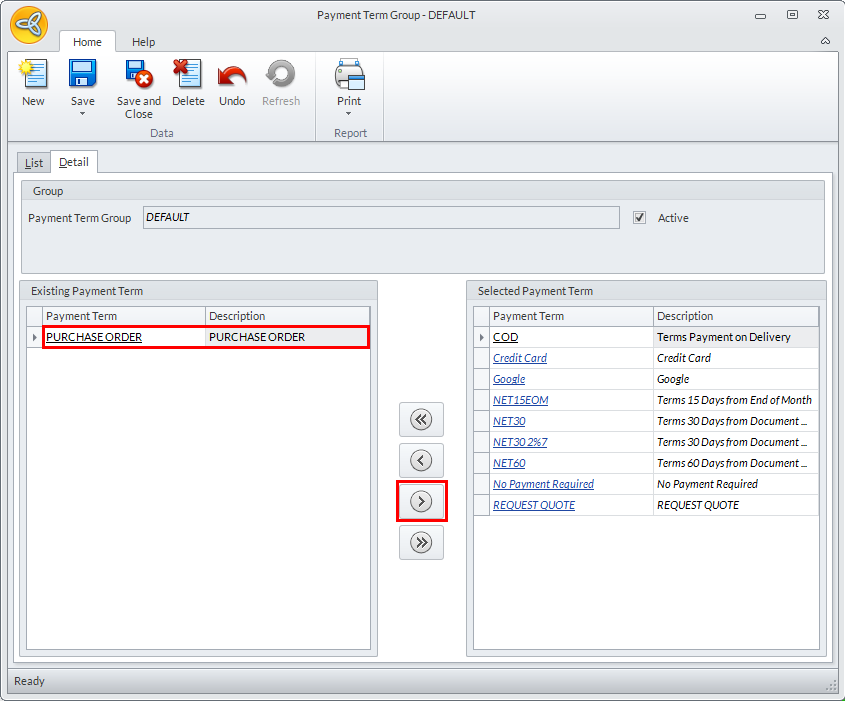
- In the Detail tab you will notice that the payment term REQUEST QUOTE will be available. Include it in the Selected Payment Term pane by clicking on the arrow buttons.
Click Image to Enlarge
- Click Save and Close from the menu bar to apply your changes.