
Create Purchase Order from Scratch
This section will discuss on how to create a purchase order from scratch.
Steps
Note that only open purchase quotes may be edited.
- Go to the Supplier module.
- You can create a purchase order from any one of the following options:
- Purchase Order > New Purchase Order
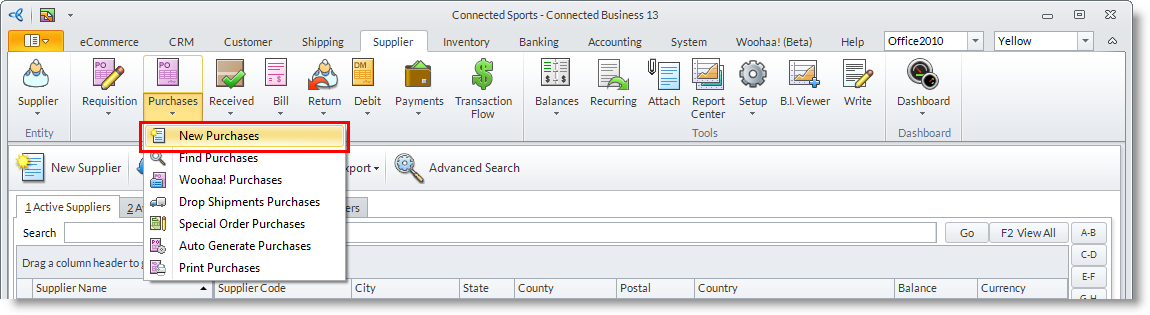
- Clicking on the New Purchase Order button in the Supplier detail form

- Purchase Order > New Purchase Order
- After using any of the options above, a search screen displaying active suppliers and available requisitions will appear.
- To create purchase orders from scratch, select a supplier from the Active Suppliers tab and click Ok. The Purchase Order form will display. The Purchase Order form will reflect the details from the supplier. You may change the default information as needed.
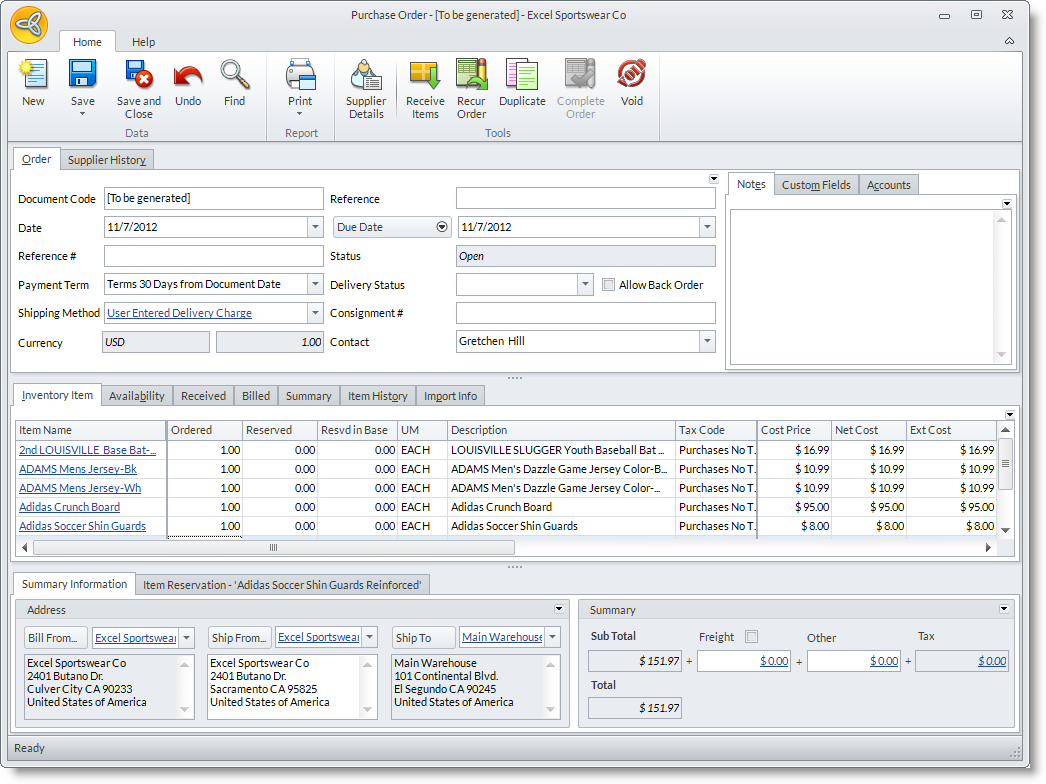
- Enter primary details to the purchase order in the Order tab. You may change or accept the default current dates in the Date (document date) and Due Date. You can switch to other date fields to fill in by clicking on the arrow button beside the Due Date field.
- You can add relevant document codes or reference numbers in the Reference # and Reference fields. You may add additional references of any sort in the Reference field.
- You may change the default Shipping Method and Payment Term.
- Optional: Enter the consignment number (if any) in the Consignment # field.
- Optional: You may select a Delivery Status for the items in the purchase order. The options are: Unknown, In Transit (Truck), In Transit (Ship), and At the Port.
- Optional: You can add notes about the purchase order in the Notes tab.
- Enter ordered items in the Inventory Item tab. In the Inventory Item tab, select all items to include in the purchase order in the Item Codecolumn pulldown.

By default the pulldown list will only display the items of the supplier. To view all the items, you will need to turn off the filtering of products in the Supplier Preferences.
- The default quantity to order from the supplier is displayed in the Quantity column. You may change the default quantity to order.
- You may change the default information for each item line such as Unit Measures, Warehouse, Due Dates and Tax Codes.
- You may change the default cost price in the Cost Price column with the negotiated price.
- You can add a discount percent in the Discount column (if granted by the supplier at the time of purchase). Note that settlement discounts are applied at the point of the supplier payment.
- The default Lead Time for the item determines the default due date for the item. You can change the default Due Date per line item in the purchase order. Moreover, you can revise these due dates when needed as long as the purchase order status is Open. The revised due date is displayed in the Revised Due Date column.
- You may change the default warehouse where the supplier would ship the item to. To change, select the warehouse from the Ship To field.
To be able to select another warehouse for the supplier to ship to, the Apply supplier across all warehouses option must be enabled in the Supplier Preferences.
- Save the details before closing the Purchase Order form.
- You may convert the purchase order into a goods received document by clicking on the Receive Items option in the menu.
