
Create New Purchase Requisition
This section discusses how to create a new purchase requisition in Connected Business.
Steps
- From the Supplier module, select Requisition > New P.O. Requisition button. A search screen displaying active suppliers will appear.
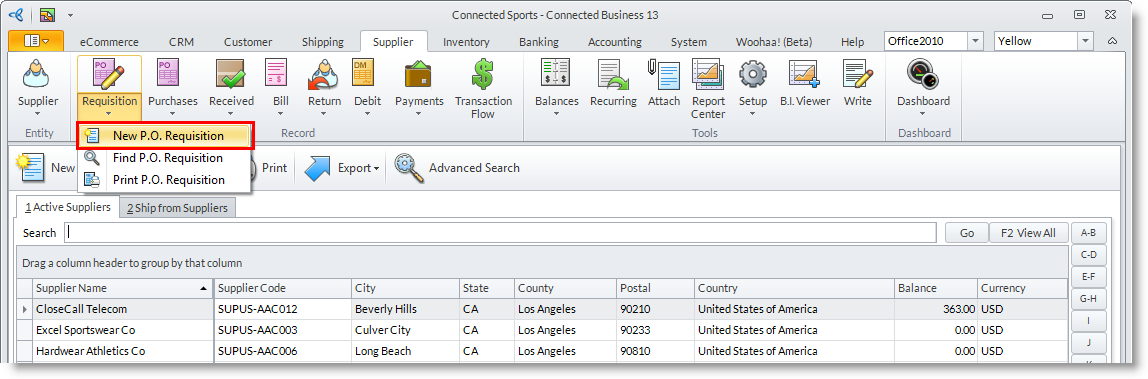
- Select a supplier in the list to display the Requisition form. The Requisition form will reflect the details of the supplier. You may modify the default information as needed.

- The supplier details will reflect in the Order tab. You may change the values or accept the default.
- You may change the default current date in the Date (document date) and Due Date fields. You may switch to other date fields to fill in by clicking on the arrow button beside the Due Date field.
- You may add relevant document codes or reference numbers in the Reference # and Reference fields.
- You may change the default Shipping Method and Payment Term.
- Optional: You may add notes about the purchase quote in the Notes tab.
- In the Inventory Item tab, select all items to be included in the requisition. Click on the pulldown option in the Item Code column to view the item list.
- Enter the number of items asked to quote in the Quoted column.
- You may change the default line item information such as Warehouse, Unit Measure, Tax Code and Cost Price.
- You may change the default destination warehouse in the Ship To field.
- Save the details before closing the Requisition form.
- When approved, you can convert the requisition into a purchase order by clicking the Convert to Order button from the menu.
