
Create Matrix Item
This article demonstrates how to create matrix items in Connected Business. Matrix refers to a group of identical items but with varying attributes (e.g. color and size).
To create a matrix item,
- Go to Inventory module > Item > New Item. The New Item Wizard will be displayed. Alternatively, you can go to eCommerce module > Item > New Item to access the New Item Wizard.
- Select Item Matrix from the list of inventory items then click Next.
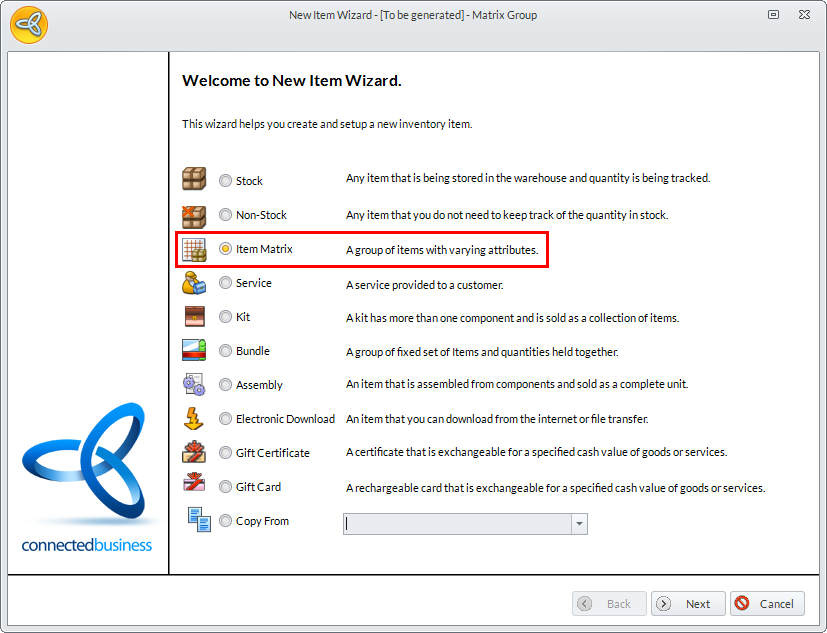
Click Image to Enlarge
- In the General Page, enter the details for the matrix item (e.g. Item Name, Description, etc.) then click Next.
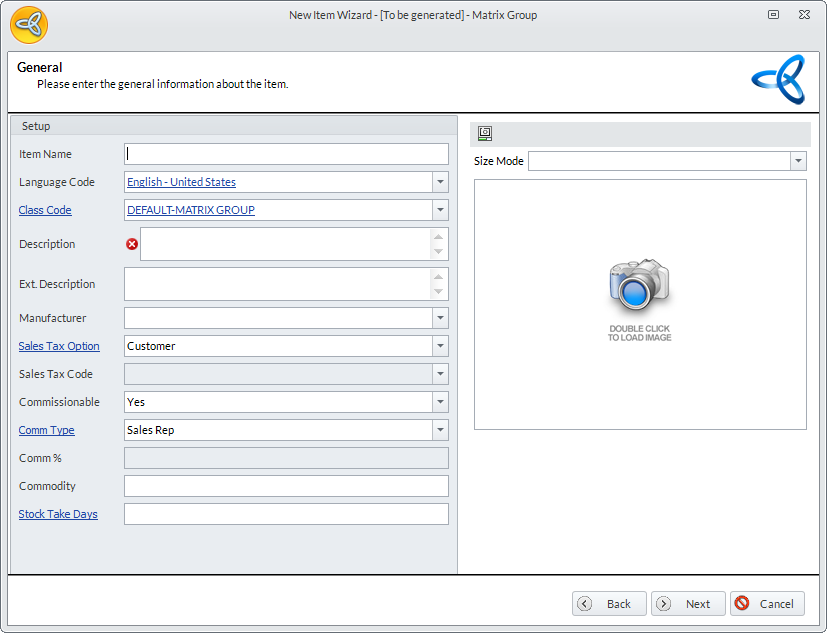
Click Image to Enlarge
- In the Unit Measure and Category page, define the unit of measure to be used for the matrix item as well as the category and department (if applicable), then click Next.
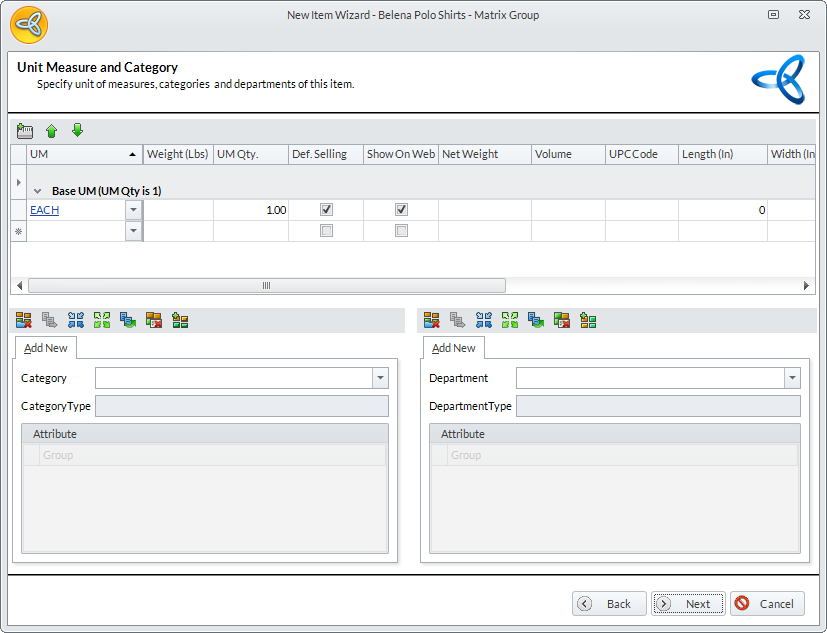
Click Image to Enlarge
- In the Setup Matrix page, specify the prefix and the separator for the matrix item then click Next.
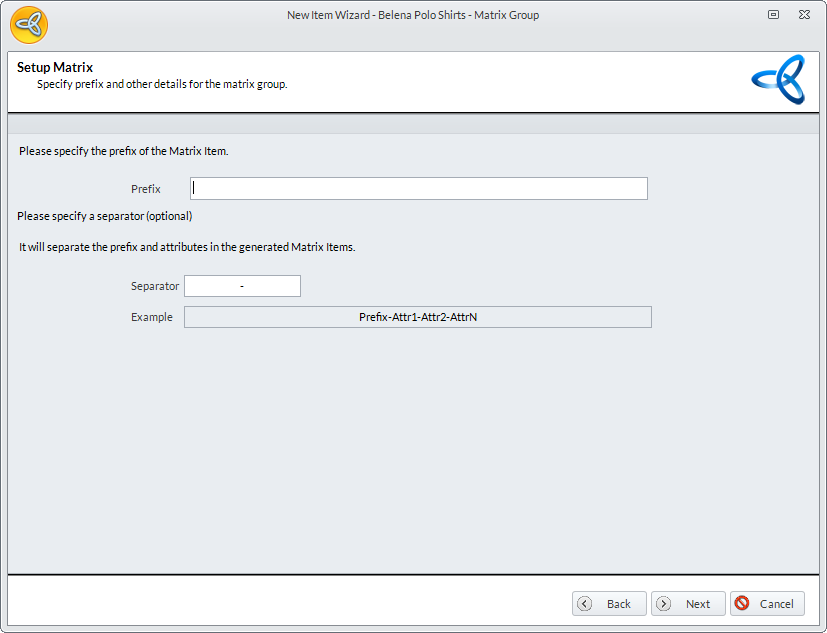
Click Image to Enlarge
- In the Attributes page, select the attributes for the matrix item from the Attribute Code dropdown list. If you want to create additional attributes, click the Add Attribute (
 ) icon to load the Attribute form. You can also create the attributes from the Inventory module > Setup > Matrix Attribute. Click Next.
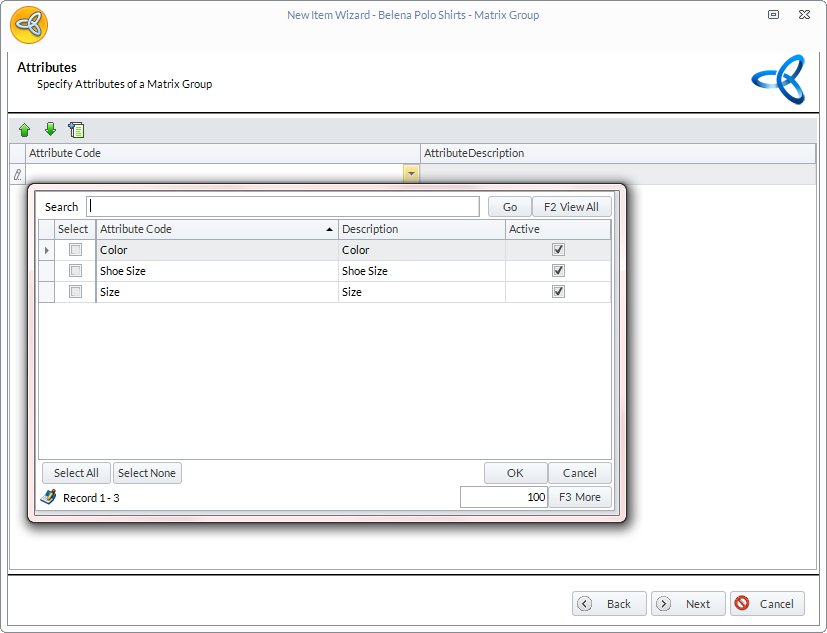
Click Image to Enlarge
- In the Attribute Values page, specify the value for each attribute (selected in the Attributes page) from the Attribute Value Code dropdown list, then click Next.
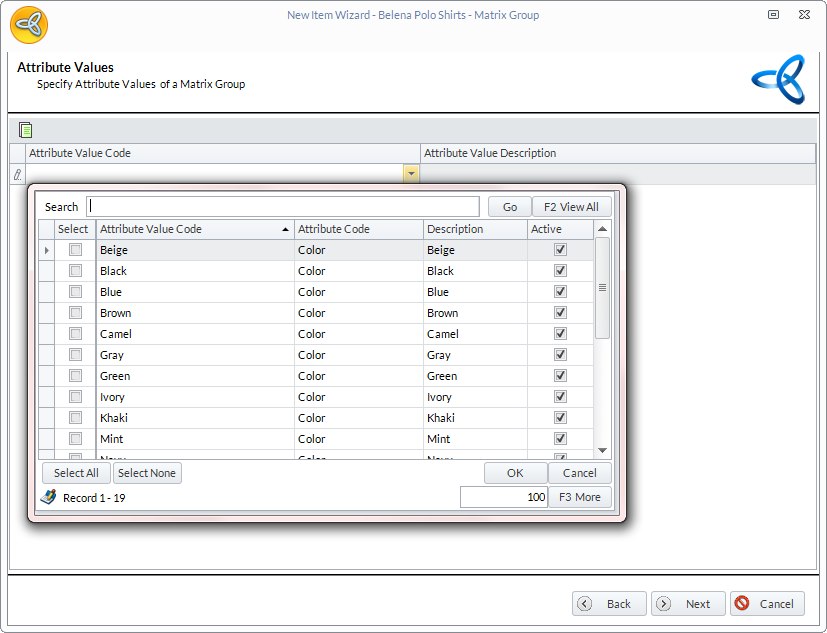
Click Image to Enlarge
- In the Matrix Item page, the list of matrix items with the defined attributeswill be generated. Click Next.
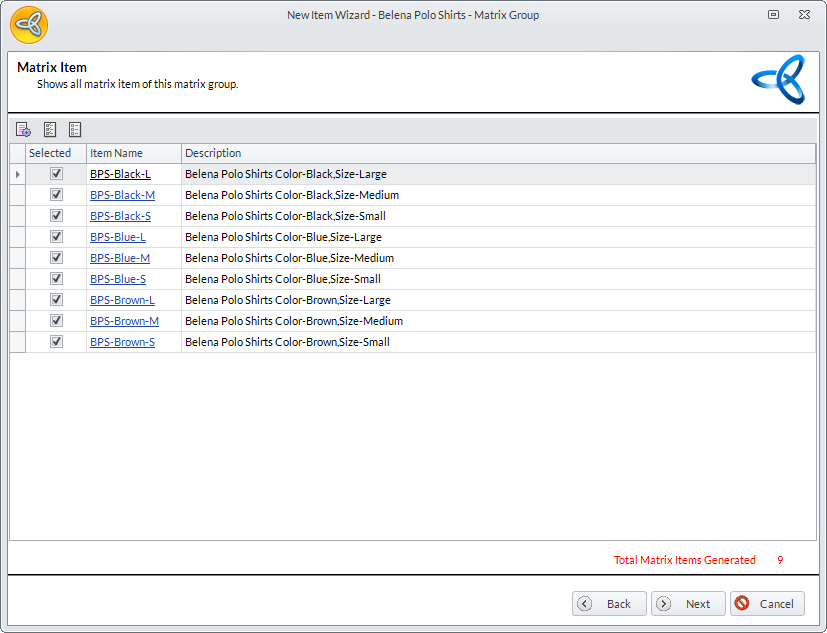
Click Image to Enlarge
- In the Costing page, specify the costing information and suppliers (if applicable) for the matrix item.
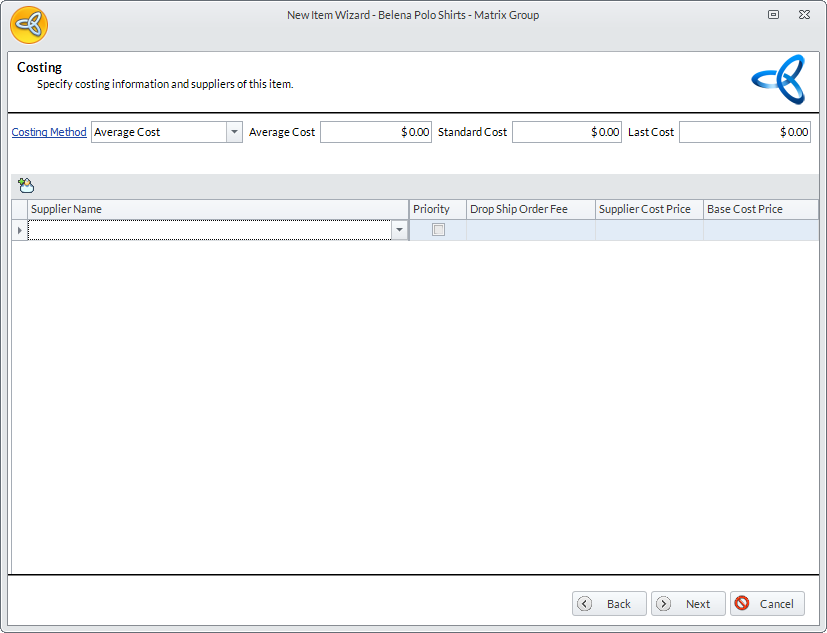
Click Image to Enlarge
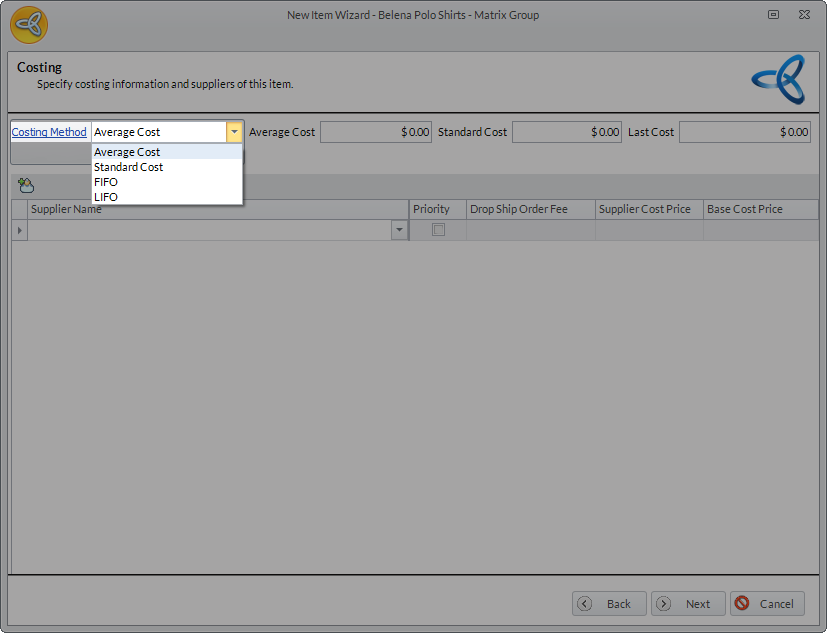
You can select the costing method from the Costing Method dropdown list.
Click Image to Enlarge
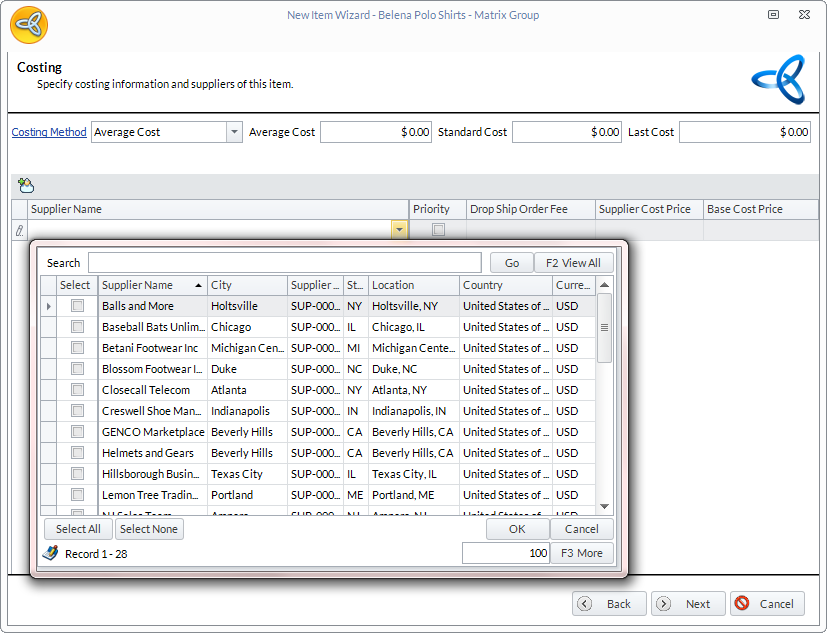
If you want to add suppliers for the matrix item, select the suppliers from the Supplier Name dropdown list. Specify the details for the Drop Ship Order Fee, Supplier Cost Price and Base Cost Price as well as tick the Priority checkbox for the suppliers where the items will be primarily ordered from. Click Next.
Click Image to Enlarge
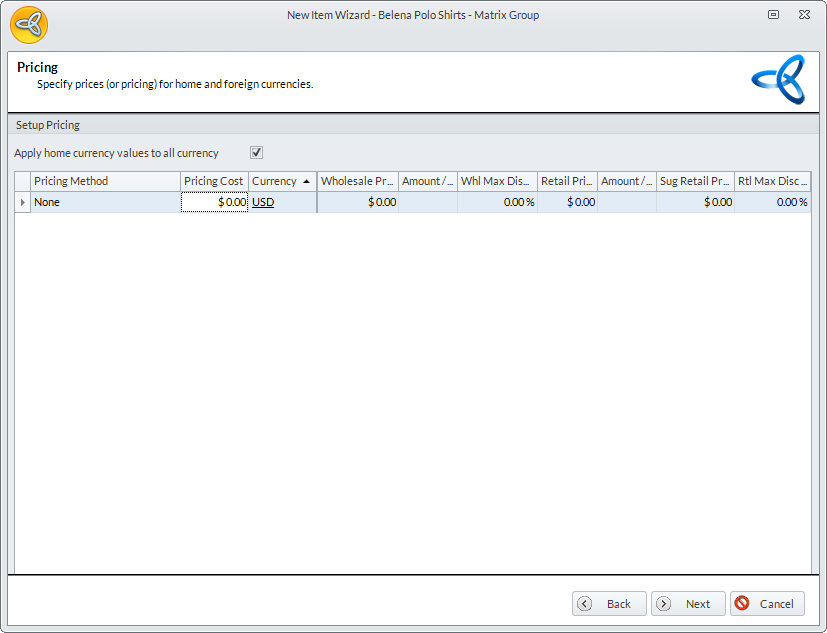
- In the Pricing page, specify the matrix item prices or pricing for the home and foreign currencies. Click Next and Finish to complete the wizard.
Click Image to Enlarge
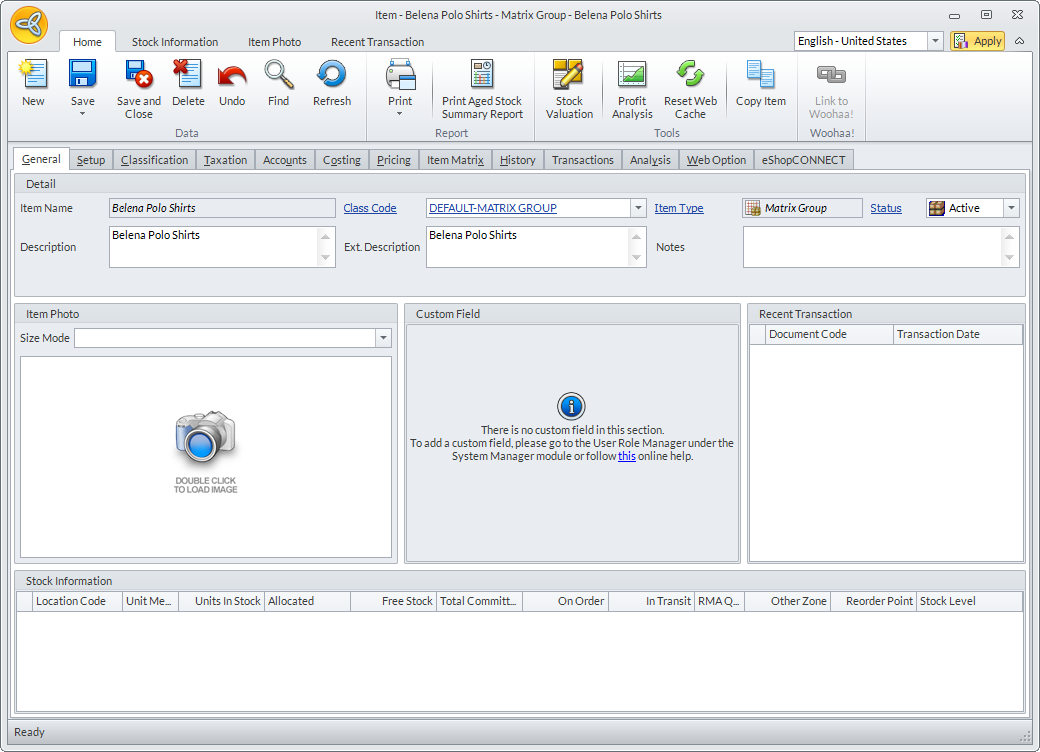
The Item Detail form for the matrix group will be displayed.
Click Image to Enlarge