
Create Debit Memo for Supplier Return
This section will discuss on how to create a debit memo in cases where paid items or products are returned to your supplier.
Steps
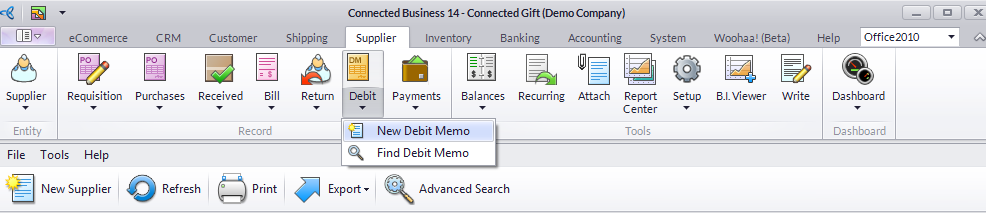
- From the Supplier module, create a new debit memo by selecting Debit > New Debit Memo. A search screen for active suppliers and outstanding returns will appear.
- To create a debit memo for returned items, switch to the Outstanding Returns tab and select the outstanding return document of the supplier. The Debit Memo form is displayed.

- The debit memo reflects the returned items in the Items tab. You can remove other items in the debit memo by right clicking on the line item and clicking on Remove.
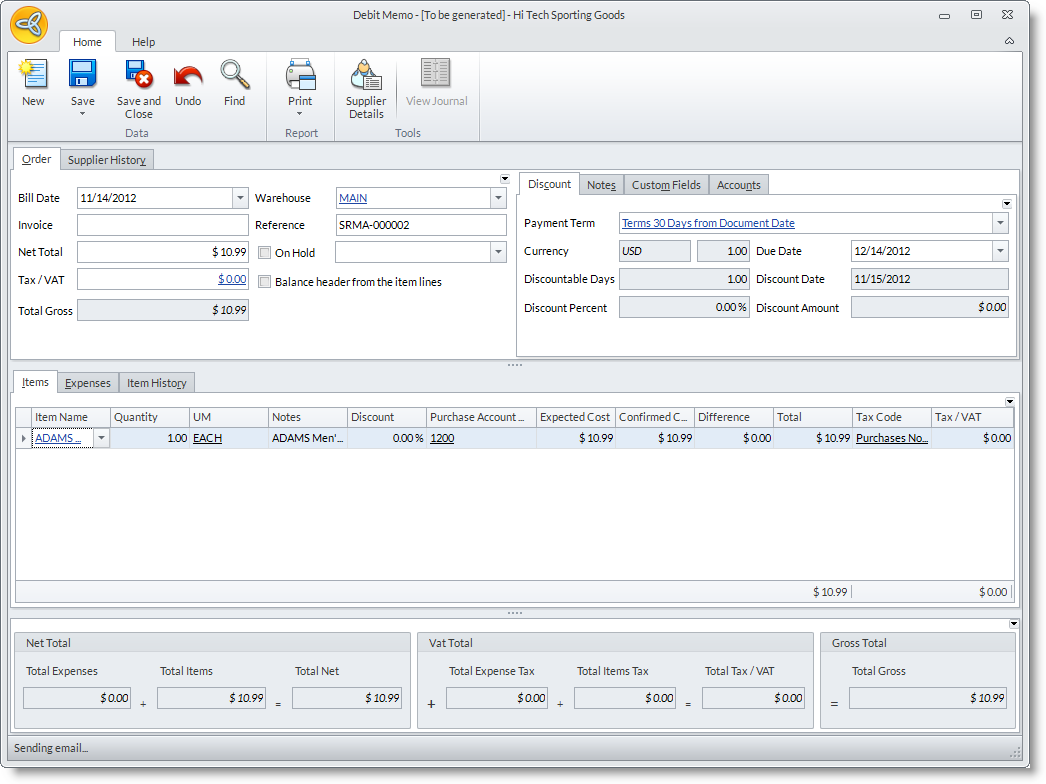
- Expenses such as freight and others (provided in the return document) are reflected in the Expenses tab. You may add or modify to these information as needed.

Note that the cumulative amount in the Net Total, VAT Total and Gross Total section should be the same as in the Net Total, Tax/VAT and Gross Total in the Header (Order tab) section.
- You can balance the amount in the Header (Order tab) section by clicking on the Balance header from items lines checkbox.
- If put on hold, you can tag the debit memo by clicking the On Hold checkbox and typing in the Reason on the next field.
- Save the details before closing the Debit Memo form. Debit Memos are created in “SCNOTE-XXXXXX” code.
