
Create Customers With Multiple Contacts
A common concern of a customer when doing business with an online store is accessing his/her account using different email addresses. This is very important especially for those customers who are actually a company entity that needs the established store account accessible to any of its authorized staff.
To set up a customer with multiple contacts,
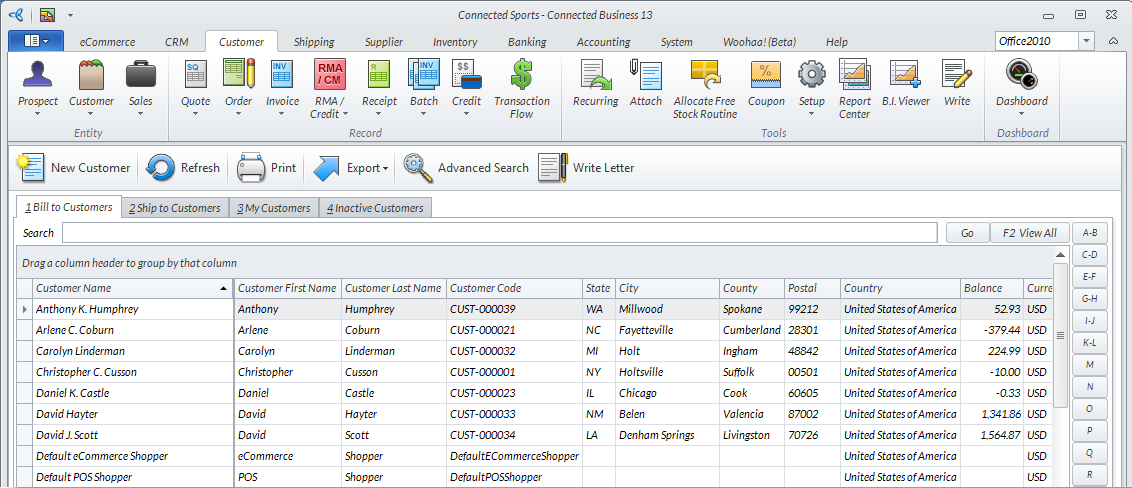
- From the Customer Module, go to Customer > Find Customer. The Customer list will be displayed.
Click Image to Enlarge
- Select a customer from the list. The corresponding Customer form will be displayed.
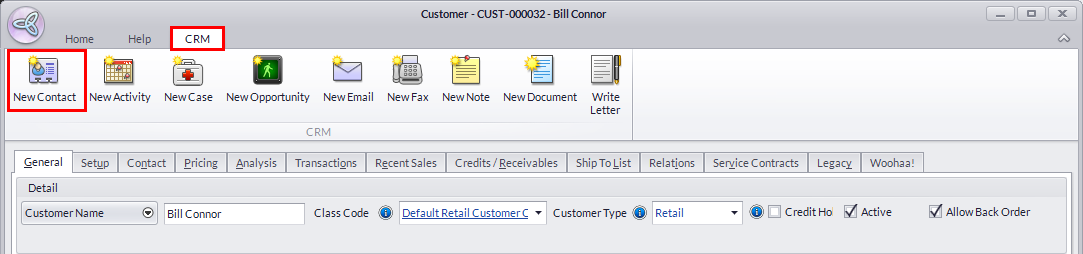
- Access the CRM tab from the ribbon menu bar and click New Contact. A Customer form will be displayed.
Click Image to Enlarge
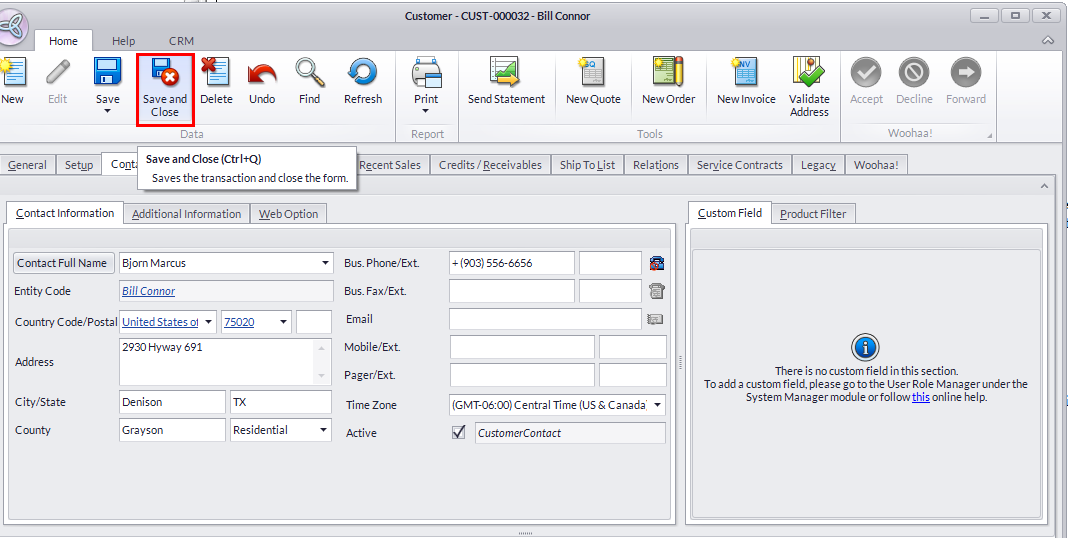
- Enter the necessary details of the new contact. Click Save or Save and Close to apply your changes.
Click Image to Enlarge

Note that the Entity Code is also the customer name you originally selected.
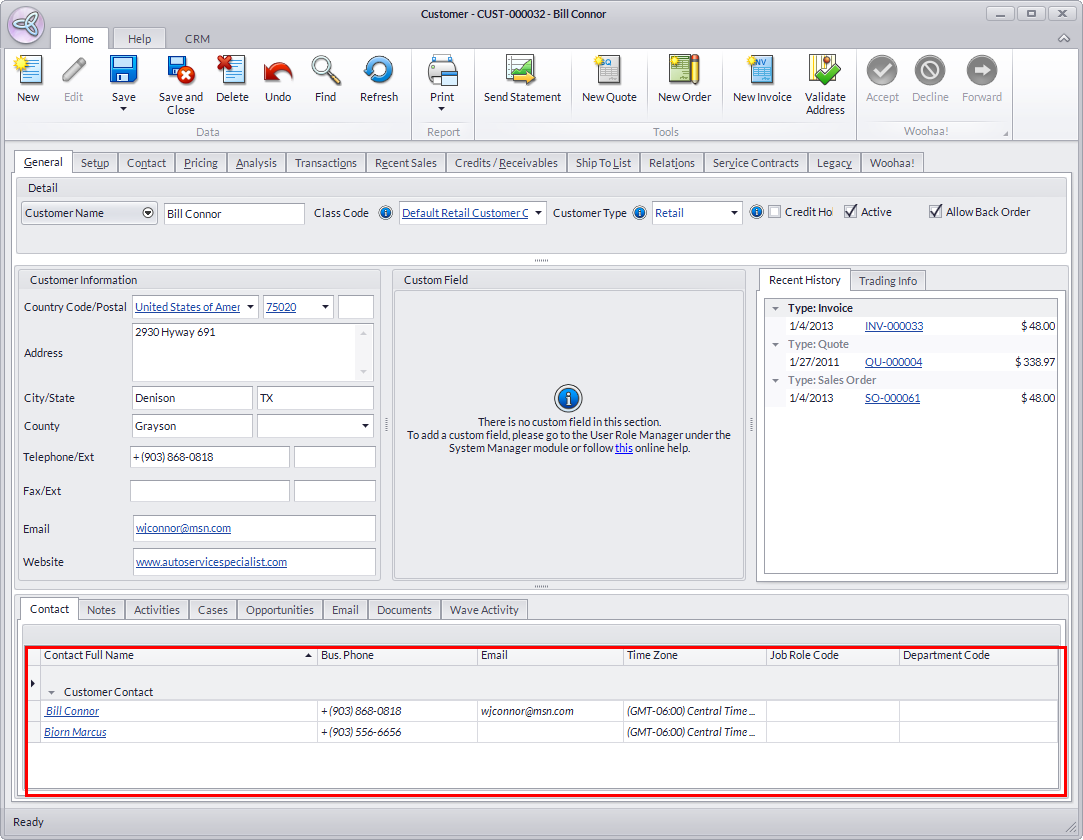
- To confirm the changes, go back to the originally selected Customer form. The new contact will be listed in the Contact tab at the bottom of the form.
Click Image to Enlarge
- Click Save and Close to close the form.

