
Create Credit Memo for Other Purchases/Expenses
This section will discuss on how to create a debit memo for other purchases and expenses.
Steps
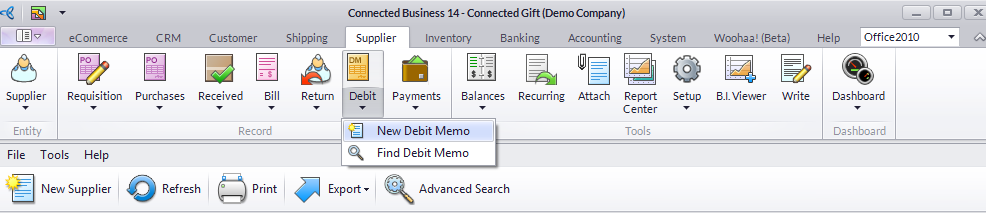
- From the Supplier module, create a new debit memo by selecting Debit > New Debit Memo. A search screen for active suppliers and outstanding returns will appear.
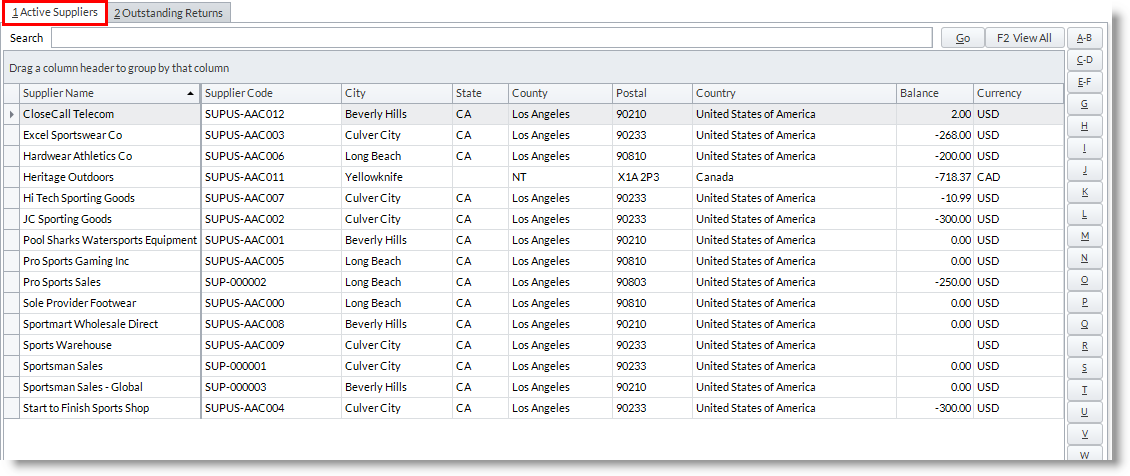
- To create a credit memo for other purchases or services acquired, select a supplier from the Active Suppliers tab.
- The Debit Memo form is displayed focusing on the Expenses tab. The credit memo reflects the details from the selected supplier. You may change the default information as needed.
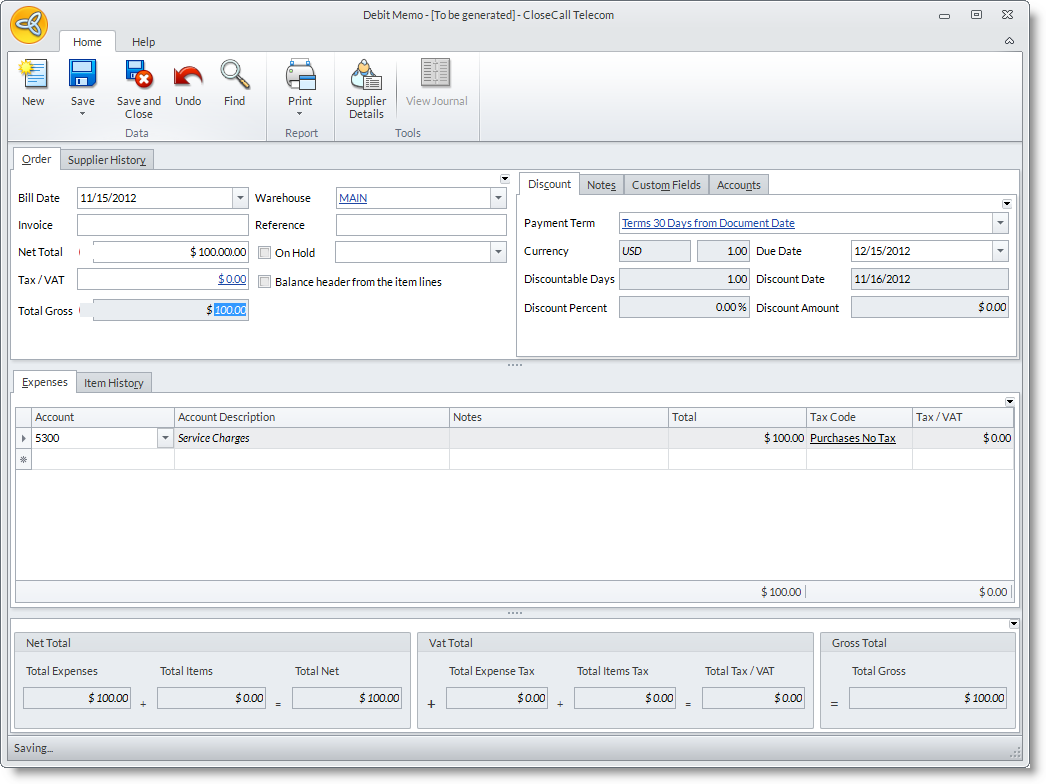
- The default Purchase Account set up for the supplier is reflected as the default expense account to credit in the Expenses tab. You can change or add other expense account if needed. To add other accounts, select the expense account code in the Account Code column pulldown
- You can add Notes and Tax details to the credit memo.

The cumulative amount in the Net Total, VAT Total and Gross Total section should be the same as in the Net Total, Tax/VAT and Gross Total in the Header (Order tab) section. To balance the amount in the header and the item lines, tick the Balance header from the item lines checkbox.
- Save the details before closing the Debit Memo form. Debit Memos are created in “SCNOTE-XXXXXX” code.
If you want to create a debit memo to record the cost difference in the Goods Received and Bill, you may refer to: Create a Debit Memo to Record the Difference in the Cost Price
