
Convert Connected Sale Transactions
|
Content
|
|---|
Similar to the workflows in the Connected Business application in the desktop, you can also convert Mobile Connected Sale transactions such as convert an order to invoice, convert an invoice to credit memo by following the processes discussed below.
Converting a Quote to Order
-
Tap on “Transactions” button. A pop up form will be displayed on the screen for reviewing the transaction.
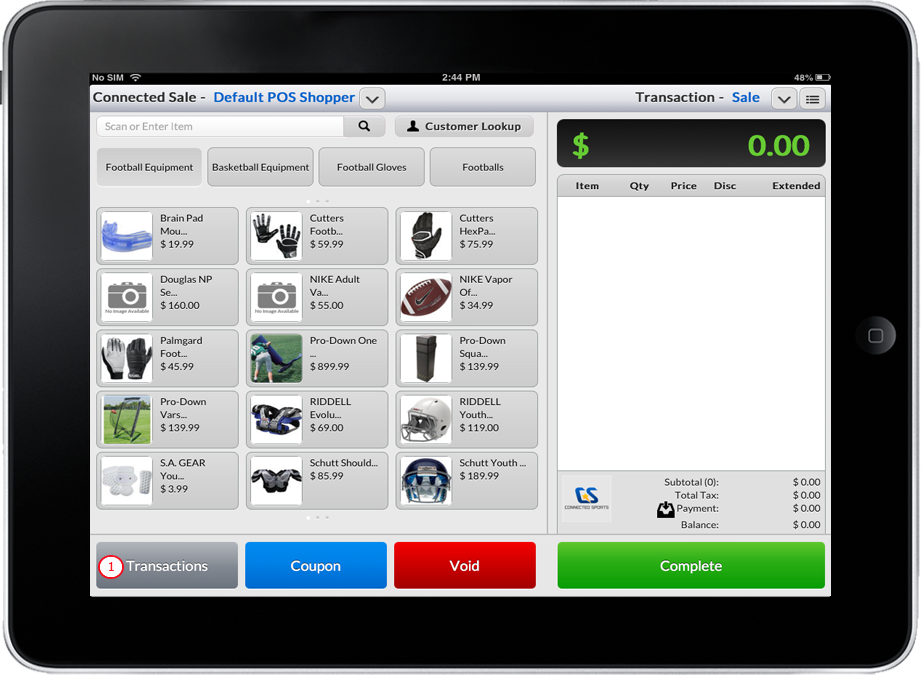
Click Image to Enlarge
- Select Quotes button that is located at the bottom of the form. A list of Quotes will be displayed.
- Select a Quote from the list or key in the search text field the Quote detail to be searched and Tap a specific Quote.
- Select and Tap “Convert”.
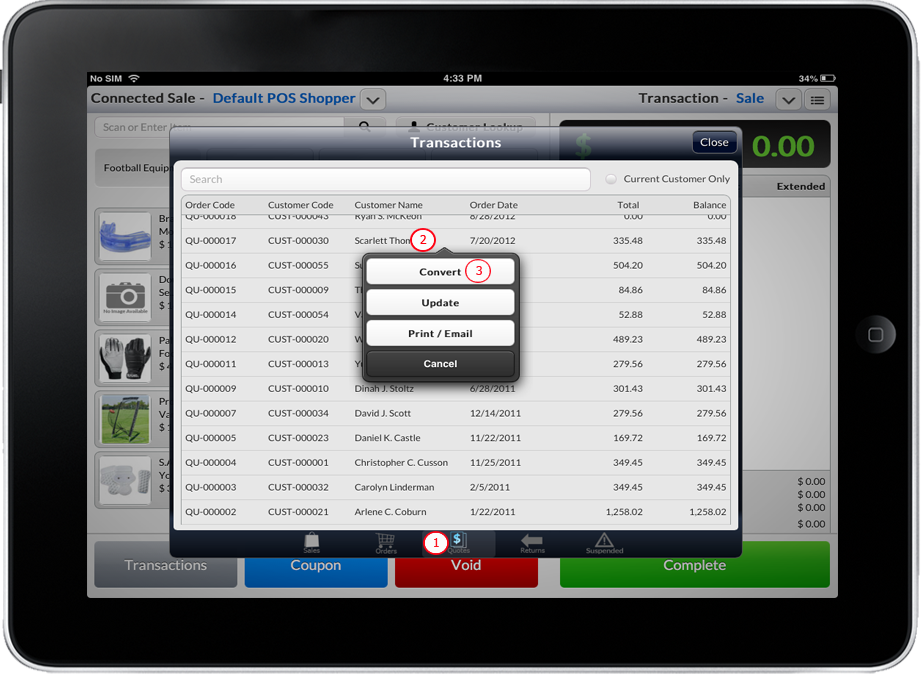
Click Image to Enlarge
- The products in selected Quote will be loaded in ConnectedSale Item List; user can either change the quantity, price, discount of an item or even add products to the list.
- After modifying the order, user can now apply partial or full payment and/or just Tap “Complete” button.

Converting an Order to Invoice
-
Tap on “Transactions” button. A pop up form will be displayed on the screen for reviewing the transaction.
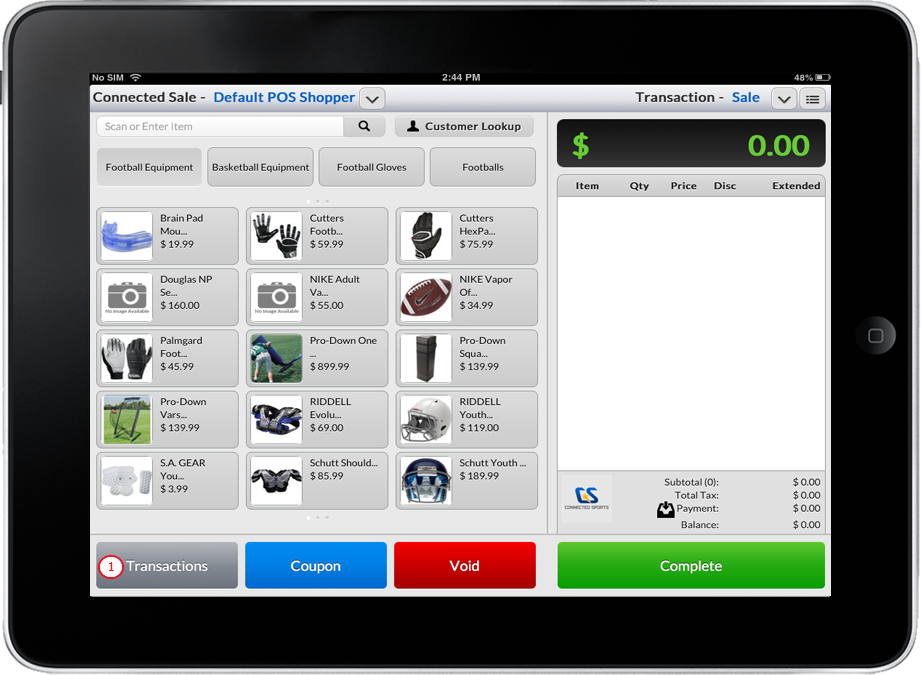
Click Image to Enlarge
- Select Order button that is located at the bottom of the form. A list of Open Order will be displayed.
- Select a Order from the list or key in the search text field the Order detail to be searched and Tap a specific Order.
- Select and Tap “Convert”.
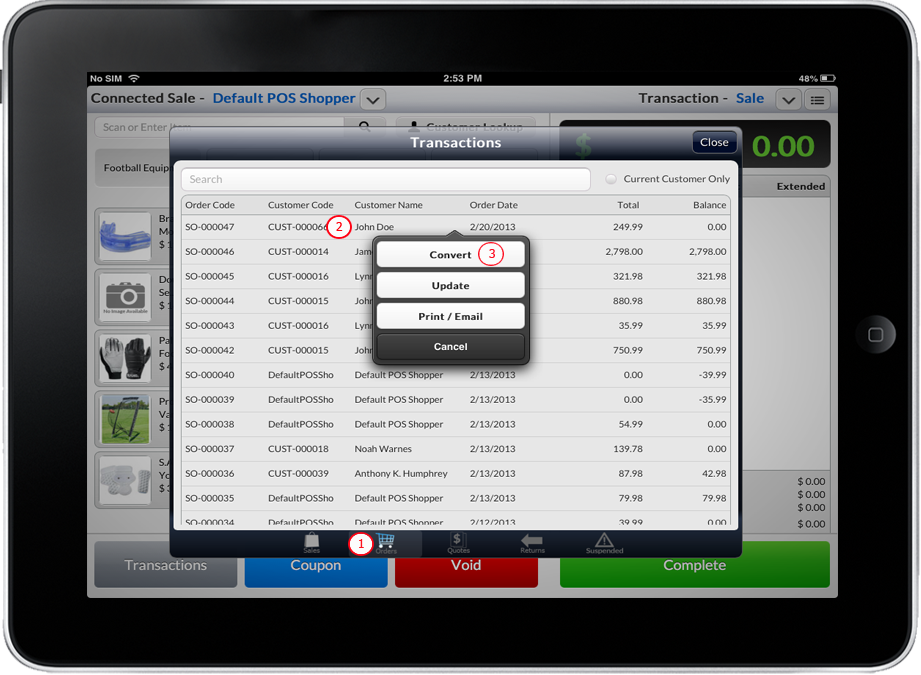
Click Image to Enlarge
- The products in selected Order will be loaded in ConnectedSale Item List; user can either change the quantity, price, discount of an item or even add products to the list.
Create Credit Memo or Sale to Return
-
Tap on “Transactions” button. A pop up form will be displayed on the screen containing previous transactions.
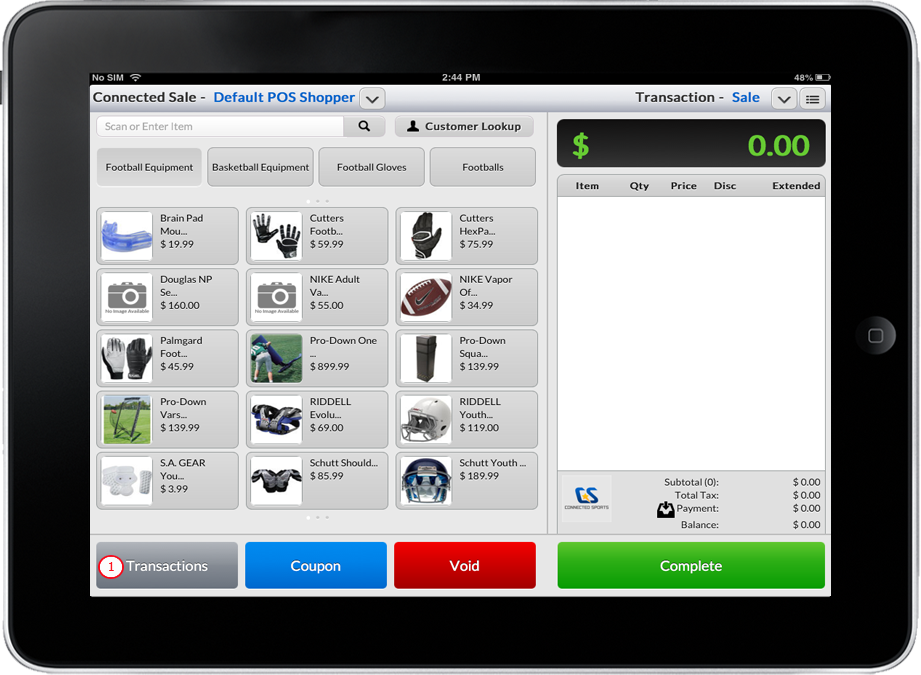
Click Image to Enlarge
- Select “Sales” button that is located at the bottom of the form. List of sales invoice will be displayed.
- Select a transaction from the list or key in the transaction detail to be searched in the search textbox field and Tap a specific item.

Make sure that the invoice transaction selected is already posted. You cannot create credit memo for unsaved transaction(s).
- After tapping the desired transaction select and tap Return.
- Tap the “Complete” button to convert the sale transaction to credit memo.
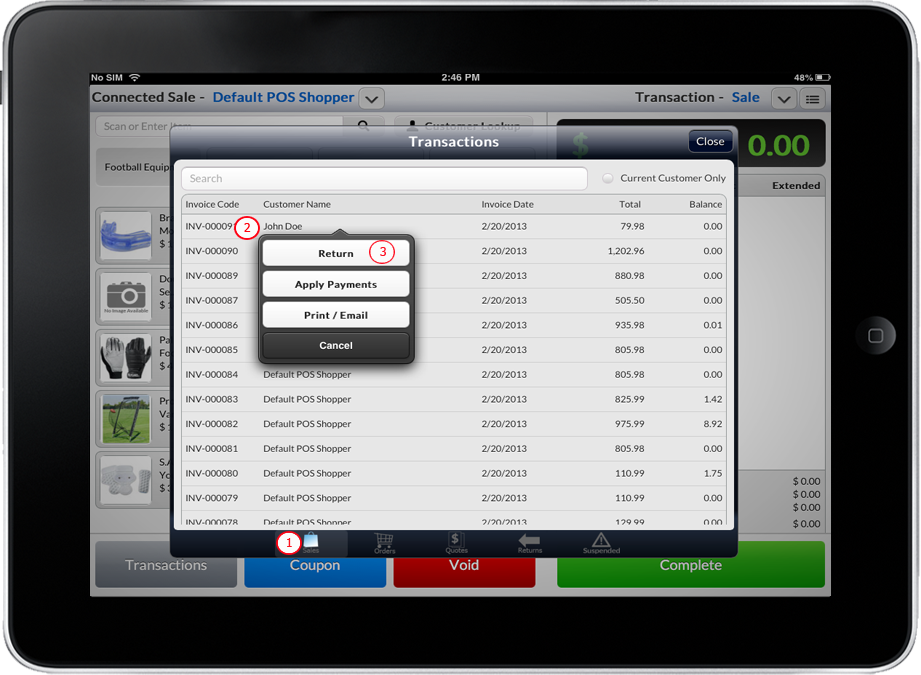
Click Image to Enlarge