
Configure System Preferences
System Preferences allows you to set general preferences to Connected Business. It allows you to configure certain functions of the System Manager to work better for your operations.
- From the System Manager > Setup > Preferences > System Preference. The System Preference form will be displayed.
- The following are the settings in the System Preference form and their descriptions:.
General Settings Section
Fields
Description
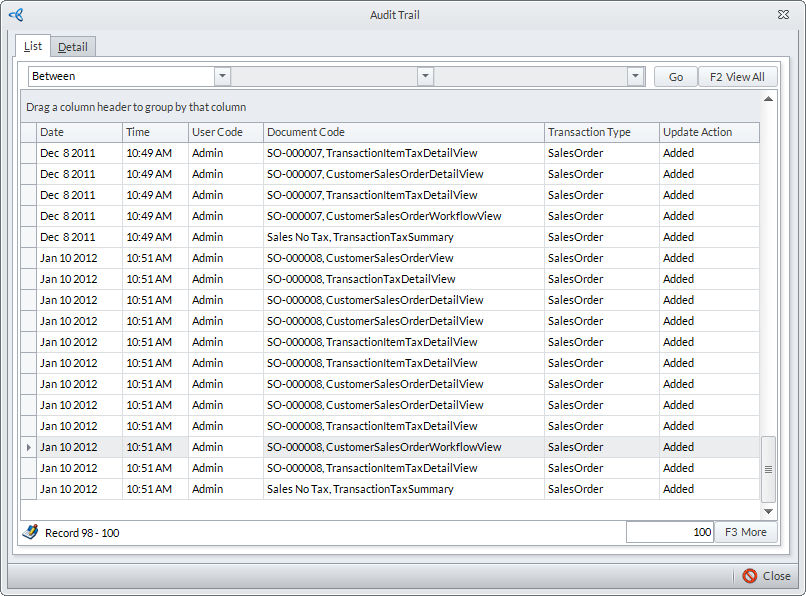
Enable Audit Trail Shows the availability of the item in all warehouses
Enable Text case Formatting When checked, the selected case formatting will apply to the input fields. The options are Normal Case, Title Case, UPPER CASE and lower case.
Company Skin You may select a default skin for Interprise Suite. All users logged in to the company database will view Connected Business in the default skin. Each user can also set the default skin of their preference.
See also: User AccountsAuto close printer dialog on selected option is printer When checked, the Print Dialog window will be automatically closed when the selected Destination option is Printer.
Turn off printing notification When checked, all notifications will not be displayed during reports printing, sending of reports via fax or email and or print to file.
Search Settings Section
Fields
Description
Number of Records to Search You may enter the default number of records to be searched in all search screens in Connected Business.
Exception Set-up Section
Fields
Description
Error Log Format Options to log system and transactions exceptions are: Database, XML and Event Log
See More: Select How To Log ExceptionsError Log File Location Specify the location where the XML log files are kept. Click on the ellipsis button to browse for a new location.
Maximum Error Log File (MB) Specify the maximum size limit (in MB) to log.
Email All Error Logs Upon clicking the Send button, the system will collate all error log files and send compressed file to vendor
Company Fax Settings Section
Fields
Description
Register for an InterFAX account A link is available for registering for an InterFAX account online. Registration is required prior to using the fax feature in Connected Business.
Fax Server Provider After registering, enter Fax Server Provider to enable the fax feature in Connected Business.
SEE MORE:
Accounting Module Setup
