
Cancel / Void Shipment Transaction
|
Content
|
|---|
If you want to cancel a shipment transaction, follow the steps to cancel or void an active or completed shipment transaction.
Steps
CANCEL A SHIPMENT
- Open the shipment transaction to be nullified.
- In the Packages section, select the specific package that you want to cancel (if multiple packages).
- Click the Void Label button located at the bottom part of the Carrier Specific section. This will cancel the package.
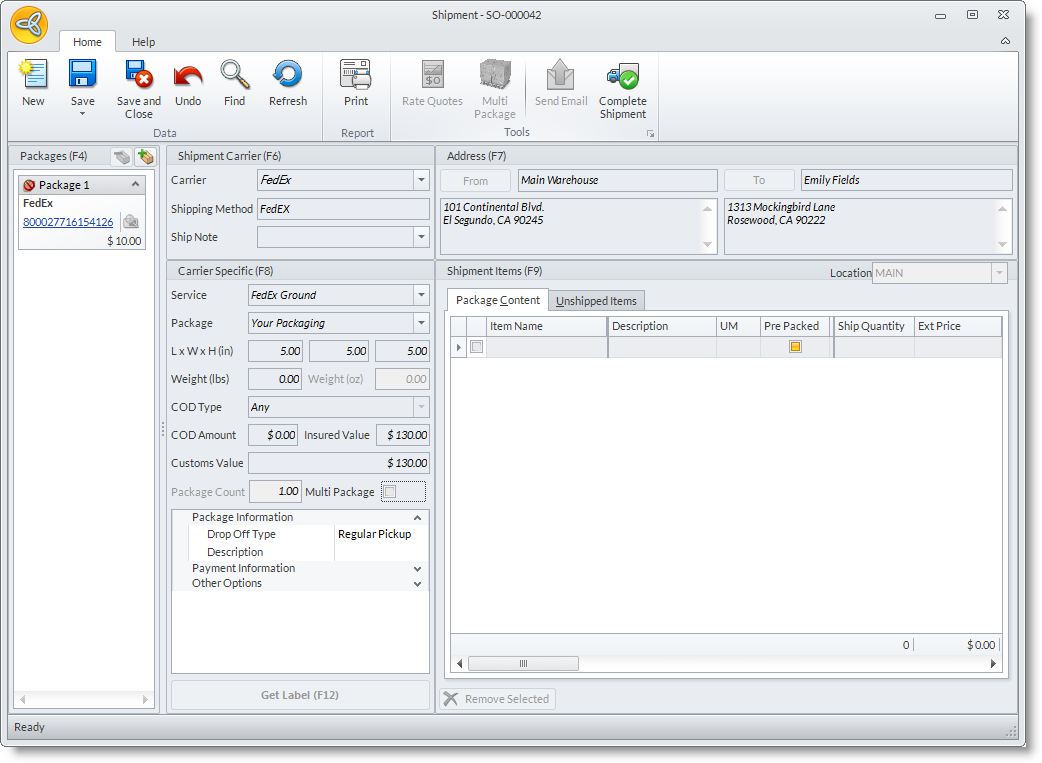
- If remaining items are still to be shipped, you can still complete the process by selecting the remaining package on the Shipment Items section, then click Complete Shipment button on the menu.
- To view the cancelled shipment transaction, go to Cancelled Shipments by clicking the History button.

Upon completion of shipment transaction, quantity of the item(s) included in the cancelled package will be reflected in the BO column of the Sales Invoice form. When the Allow BO option is enabled during creation of order/invoice, a back order will be created for the cancelled items once invoice is posted.

FORCE VOID A SHIPMENT TRANSACTION
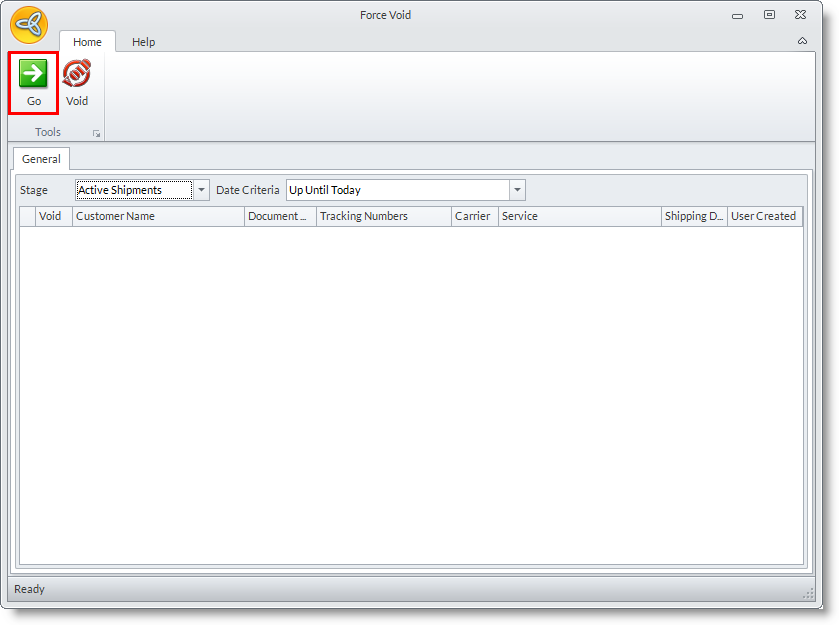
- Go to Shipping Module > Tools > Force Void.

- Specify the criteria for:
- Stage - status of the shipments. You may select between Active shipments or Completed Shipments.
- Date Criteria - set the date the shipments are created. There are various options you can select on the date criteria drop down.
- Click Go button from the menu. The list of shipment transactions will then be displayed.
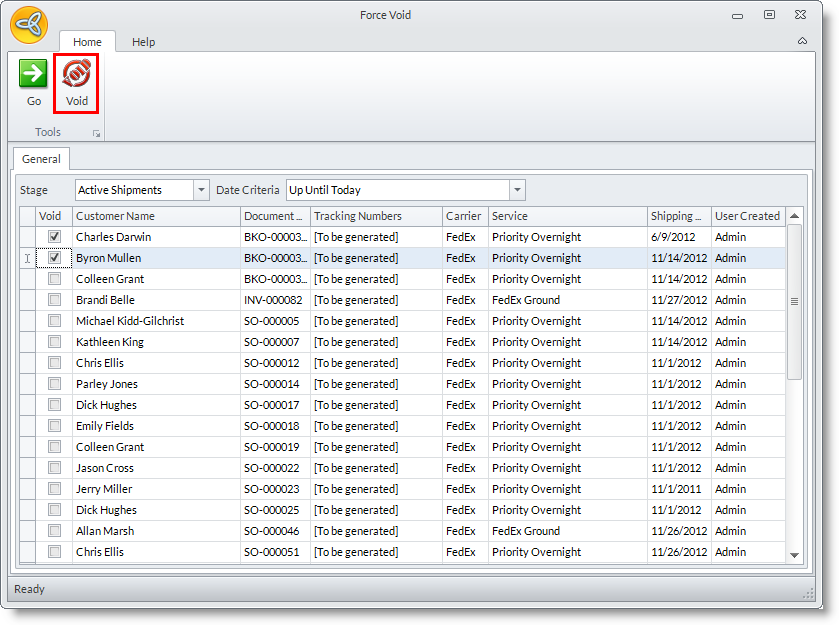
- Select the shipment transaction(s) by ticking on the checkbox beside the customer name.
- Click on the Void button from the menu.
- A pop-up form will ask confirming if you want to continue voiding the shipment transaction. Select Yes to void.
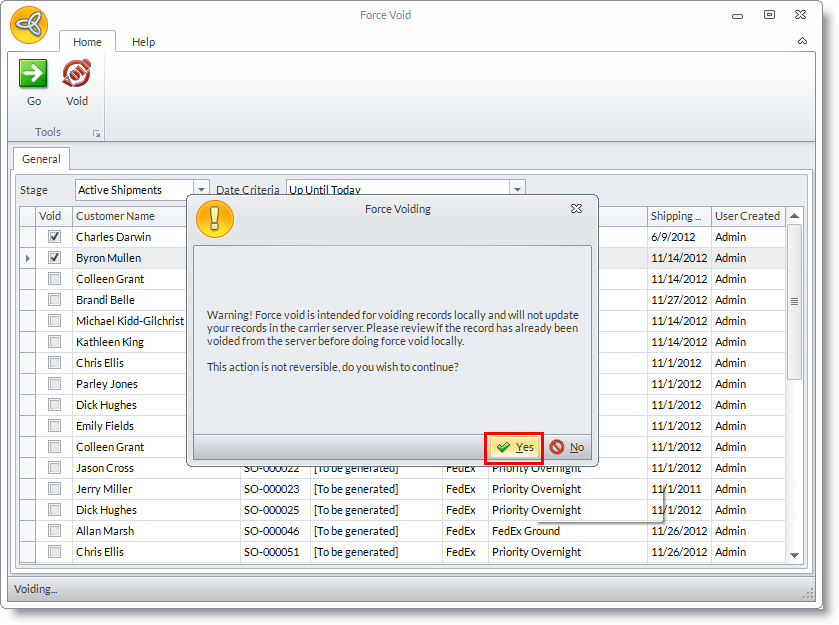
- You may now close the form.