
Bundle Items
This article demonstrates how to create bundle items in Connected Business. Product bundles are two or more separate items that are bundled together to be sold as a single item. Individual components need to be entered into the inventory list as separate entities before they can be added into a bundle. You have the option to set specific pricing methods for a bundle.
To create a bundle item,
-
Go to Inventory module > Item > New Item. The New Item Wizard will be displayed. Alternatively, you can go to eCommerce module > Item > New Item to begin the same process.
-
Select Bundle from the list of inventory items then click Next.
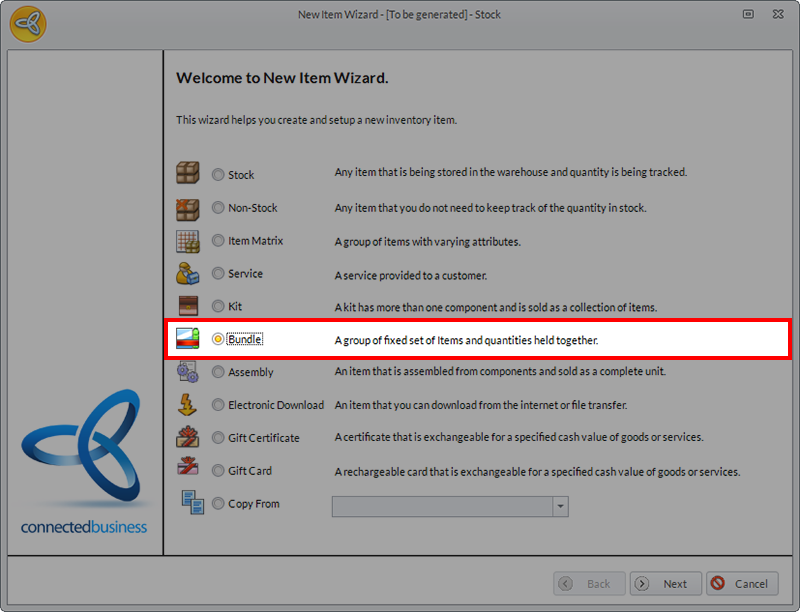
Click Image to Enlarge
-
On the General Page, enter the details for the Bundle item (e.g. Item Name, Description, etc.). On the right side of the screen, double click on the image box to upload the product image.
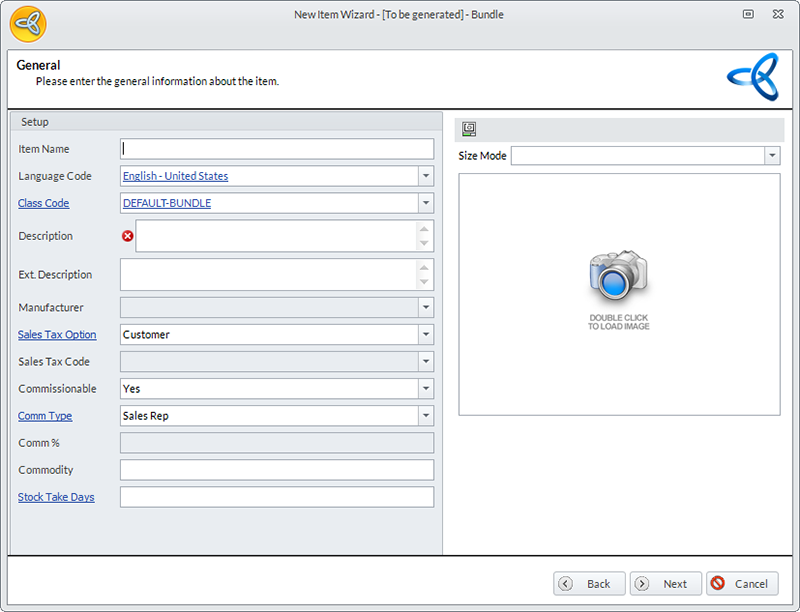
Click Image to Enlarge
After filling in all the required fields, click Next.
-
Click on the field under Item Code to launch a drop down list of inventory items that can be added in the bundle.

Click Image to Enlarge

Bundle item types that can be processed through the web store include stock, matrix items, and assembly items. Other item types cannot be added as components.
-
When adding a matrix item into the bundle component, click on the expand button for the full list of attributes. Tick the check box under the Selected column to add invidivual items into the bundle.
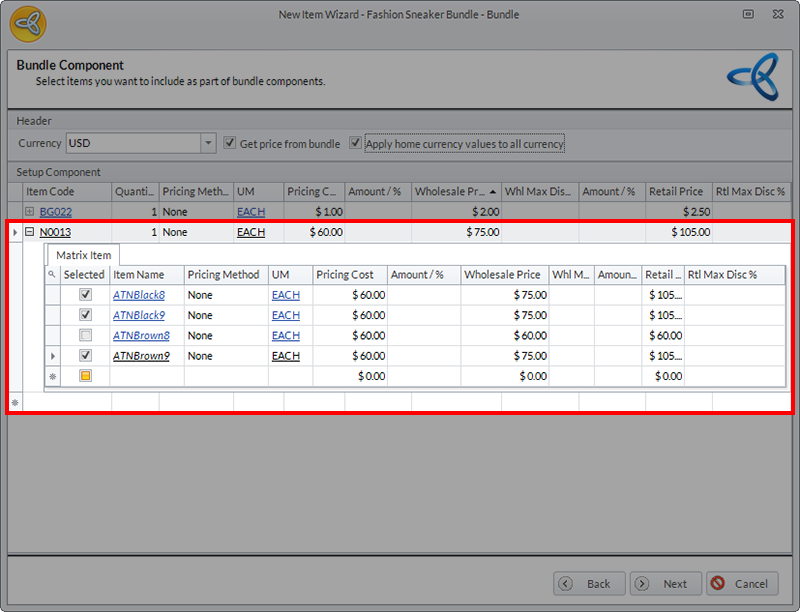
Click Image to Enlarge
If you keep the Selected box unchecked, the specific item will not be able as an option for the bundle even if they are still for sale as a separate item.
-
Check the tick box labeled Get Price From Bundle to configure a specific pricing method for the product. Leaving the option unchecked means that the final price for the bundle item will be the total of the retail price of the individual components.
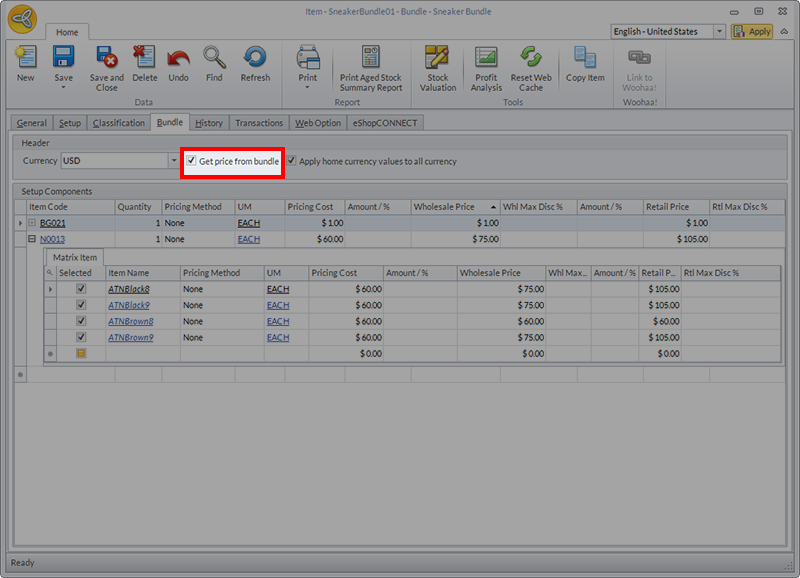
Click Image to Enlarge
-
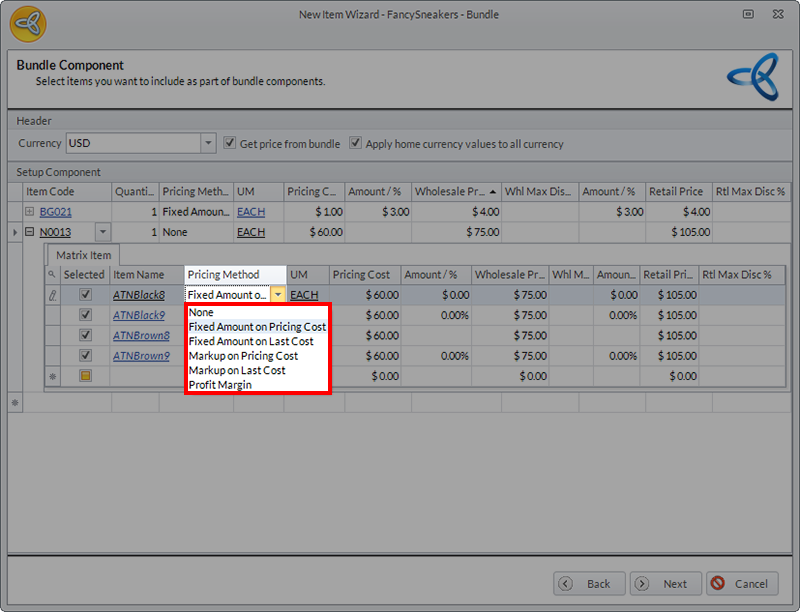
Go to the list of component items and click on the dropdown field under Pricing Methods. This parameter needs to be set for every item, including grouped under a matrix.
Click Image to Enlarge
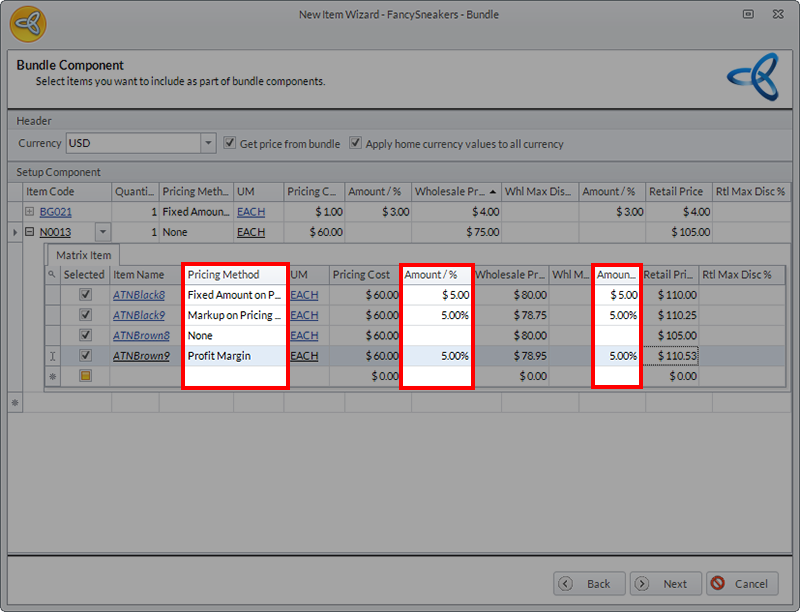
The pricing method options available for bundles are:
-
None – Manually enter prices at the Wholesale Price and Retail Price fields
-
Fixed Amount on Pricing Cost or Last Cost – Fixed amount to be placed on top of the wholesale price or retail price. This field accepts negative values.
-
Markup on Pricing Cost or Last Cost – Percentage of the wholesale price or retail price to be placed on top of the selling price. This field accepts negative values.
-
Profit Margin – Calculated percentage of the profit margin to be added to the pricing cost or last cost.
Click Image to Enlarge
Click Next once all of the bundle items have been configured.
-
-
Finish the iterm wizard to generate the new bundle item form.

Click Image to Enlarge
The item form can be found within the Inventory module. Click Item > Find Item and double click on the specific entry from the product list.
-
To correctly display bundle items on the web store, refer to our documentation: Display Bundle Items On Web Store.