
Batch Update Payment Term Across All Ship To
A customer can have several Ship To with different payment terms. In the previous version of Connected Business, if you want to update the payment term for all Ship To, you need to open the Ship To form for each Ship To and change the payment term one at a time.
In Connected Business v14, you can simultaneously update all payment terms for all Ship To associated with one customer as will be demonstrated in this article.

This feature is only applicable in Connected Business v14 and higher.
To apply the same payment terms to all Ship To associated with one customer:
- Go to Customer module > Find Customer. Select the customer from the list to load the Customer Detail form.
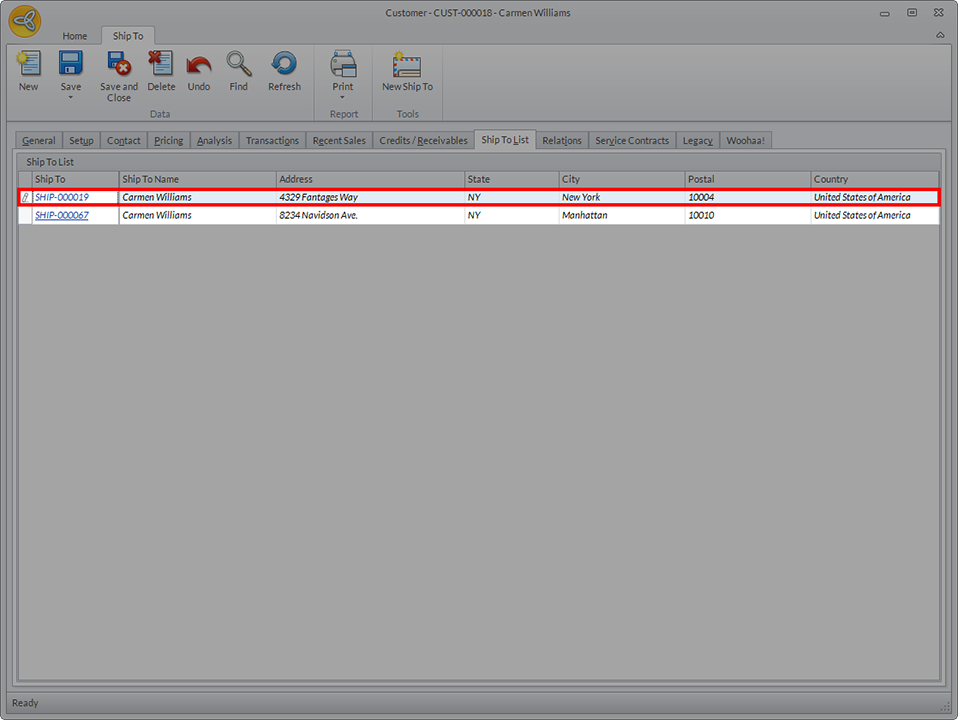
- Click on the Ship To List tab to view the list of all Ship To associated with the customer.
Click Image to Enlarge
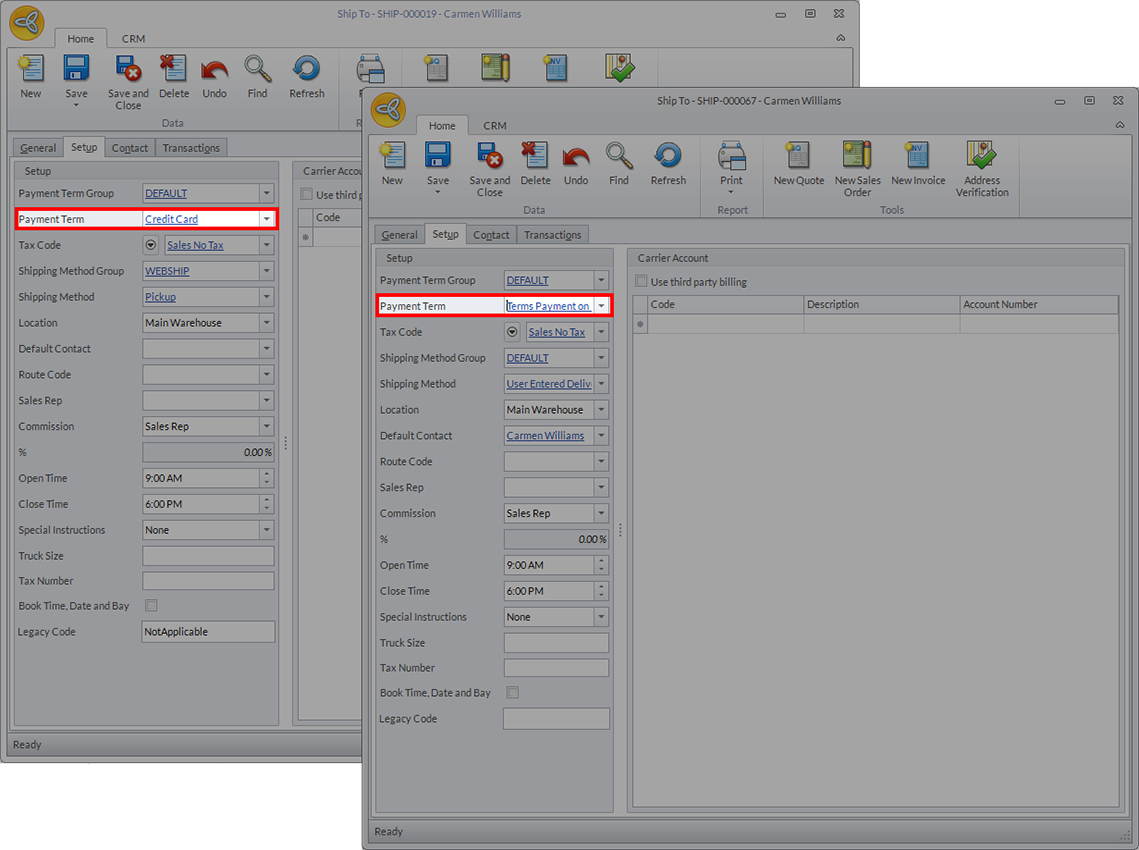
- Double click on one of the Ship To to load the Ship To Form. Each address may have a different payment term (see image below).
Click Image to Enlarge
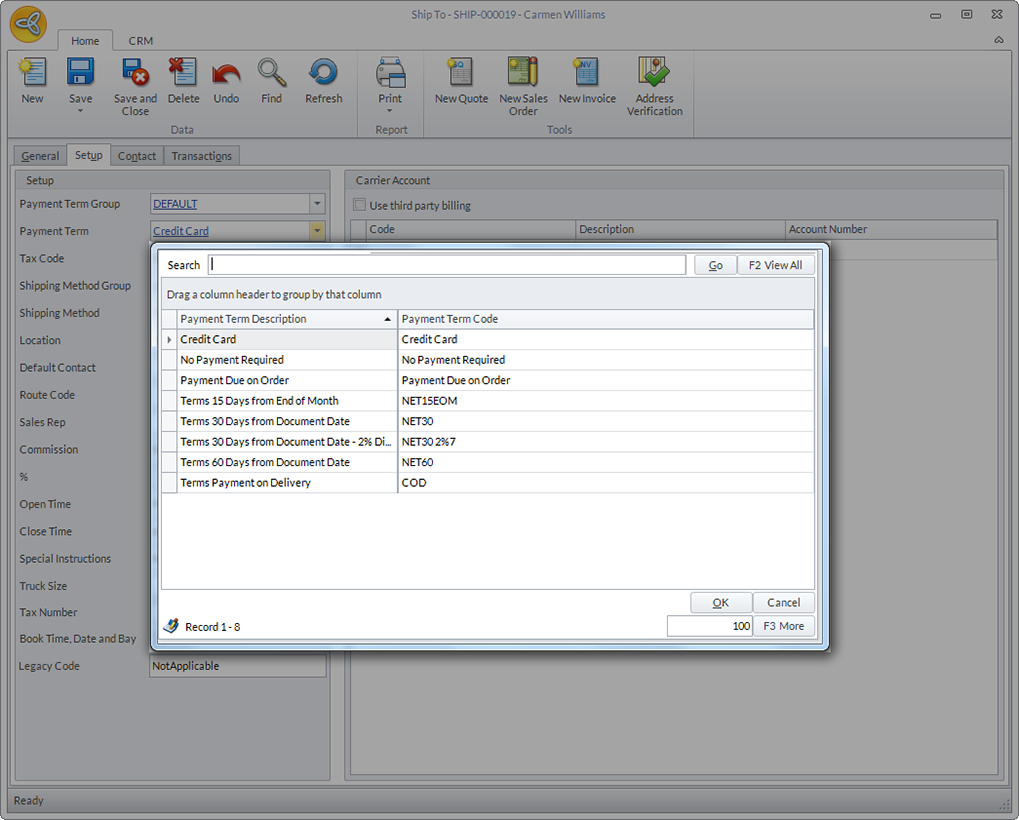
- In the Ship To form, go to the Setup tab > Payment Term. Click on the dropdown menu and select the payment term that you want to apply.
Click Image to Enlarge
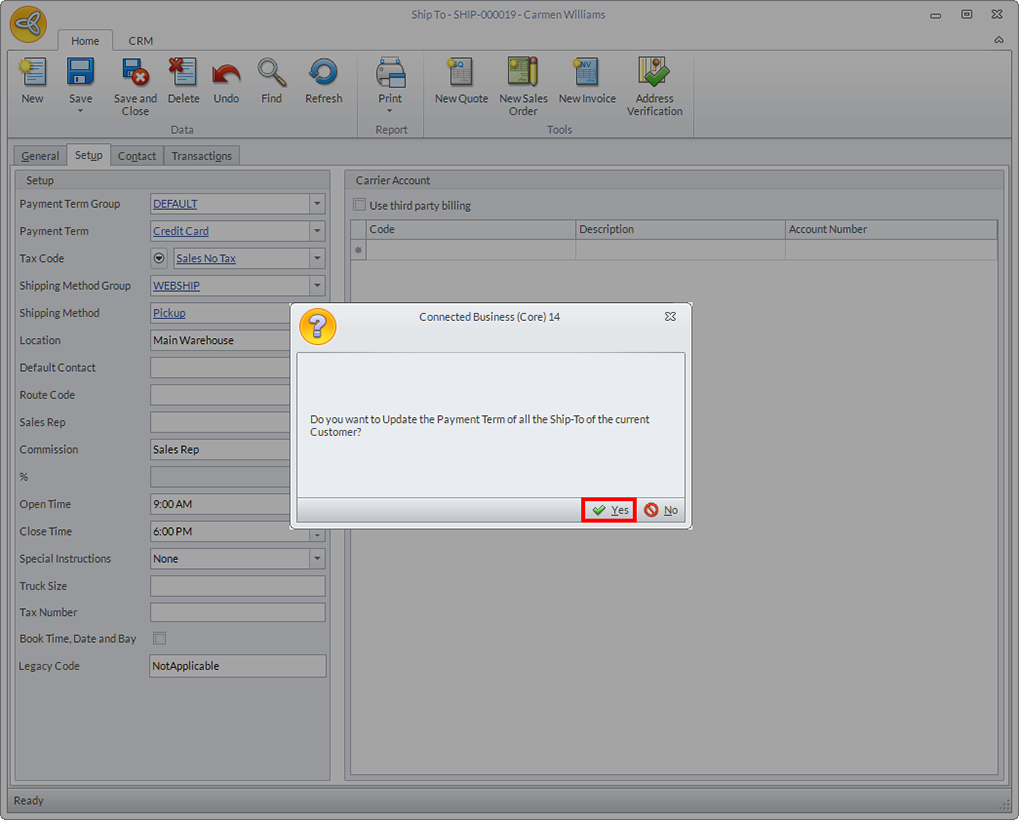
- A prompt will appear confirming if you want to update the payment term across all Ship To. Click Yes.
Click Image to Enlarge
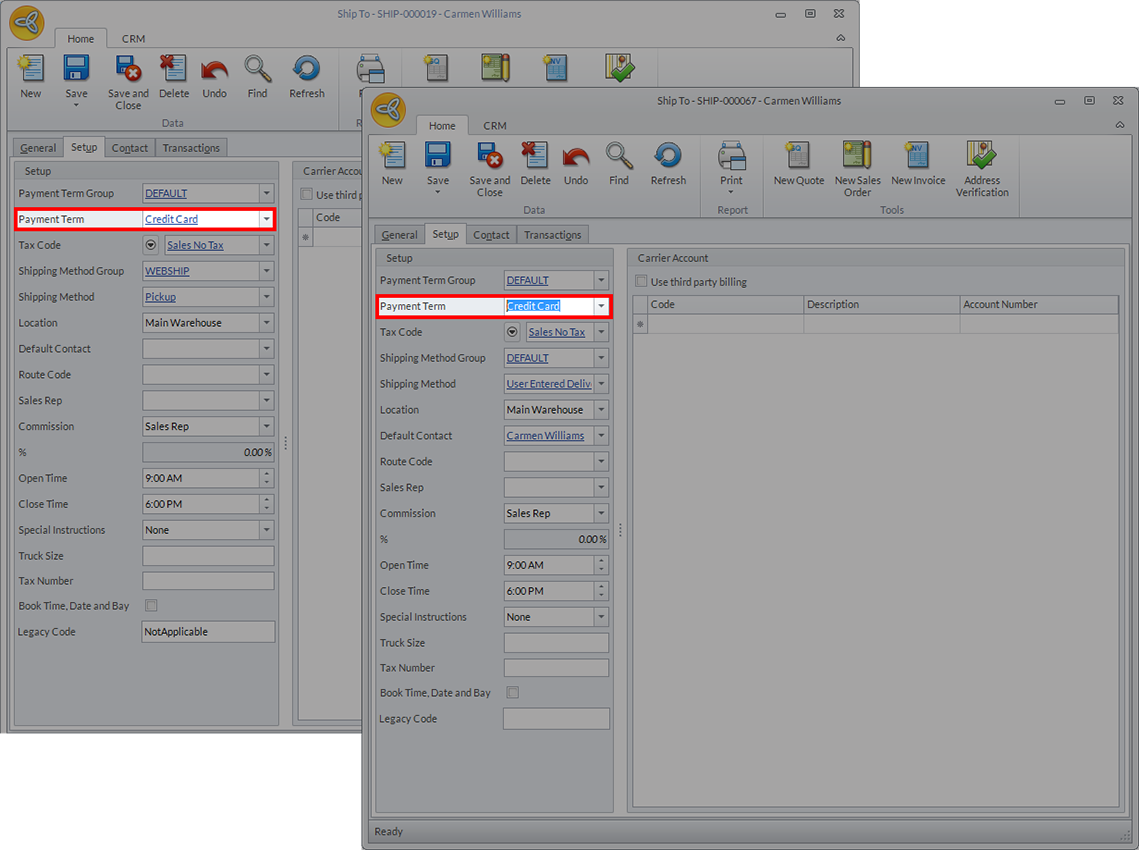
- Reload the Ship To forms for all Ship To and notice that the payments terms have been updated.
Click Image to Enlarge