
Apply Discounts
|
Content
|
|---|
You can apply discount to an item or a transaction(sale) in the Mobile Connected Sale by following the processes dicussed below.
Applying Item Discount
In this process, you will be creating a transaction with Item Discount using Connected Sale.- Click the View Item Details of any items in the transaction cart.
- Item Details pop-up window will appear.
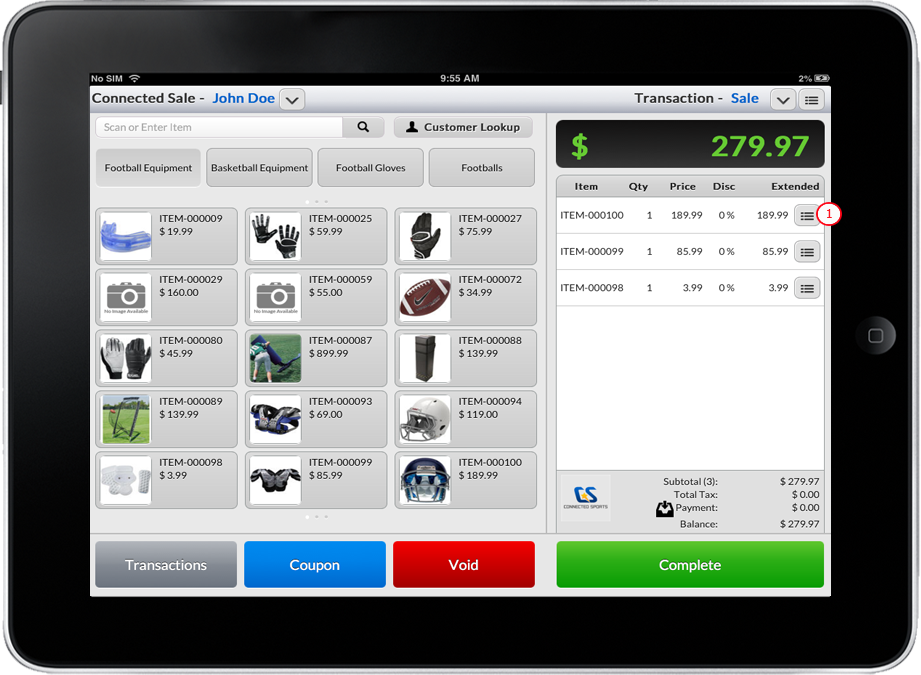
Click Image to Enlarge
- Input the discount percentage in the Discount textbox.
- Click Done button to close the window.
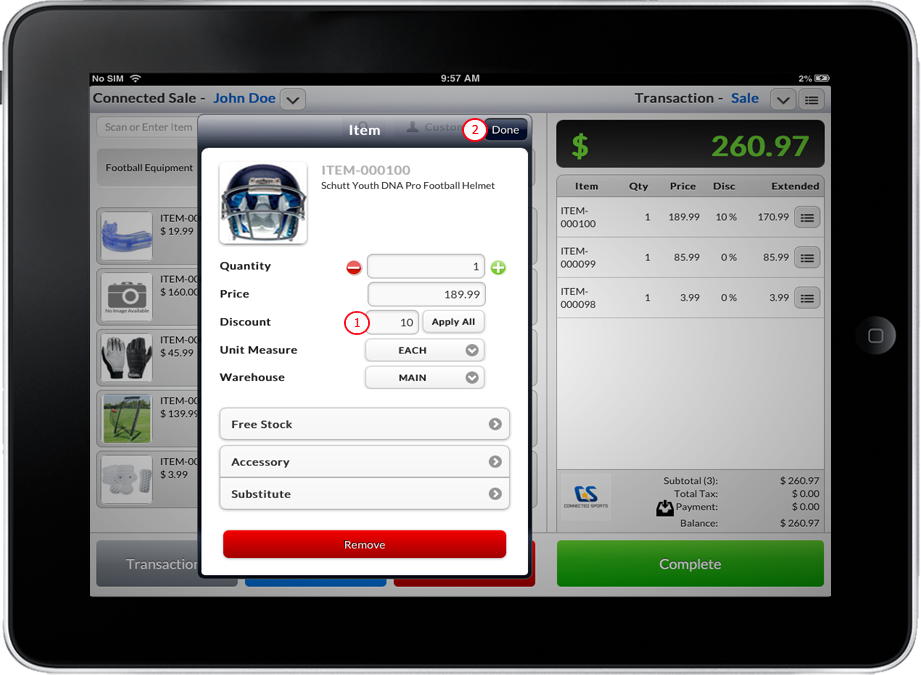
Click Image to Enlarge
- You can now proceed and complete the transaction.

Applying Sale Discount
In this process, you will be creating a transaction with Sale Discount using Connected Sale.
- Click the View Item Details of any items in the transaction cart.
- Input the discount percentage in the Discount textbox of the Item Details window.
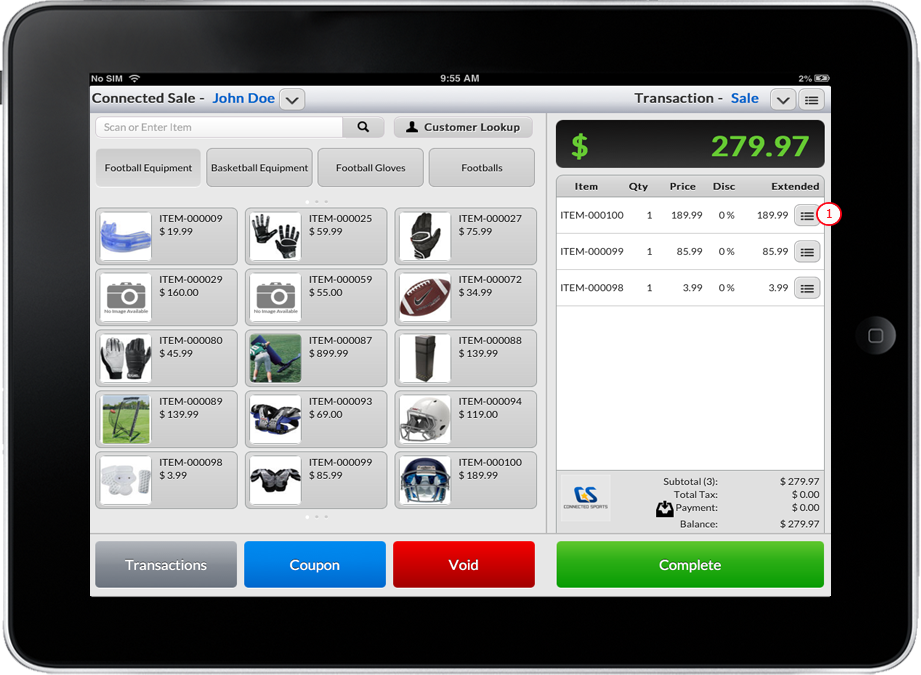
Click Image to Enlarge
- Input the discount percentage in the Discount textbox.
- Tap on the Apply All button. A confirmation message will appear, click Yes to apply discount to all items in the transaction.
- Click Donebutton to close the window.
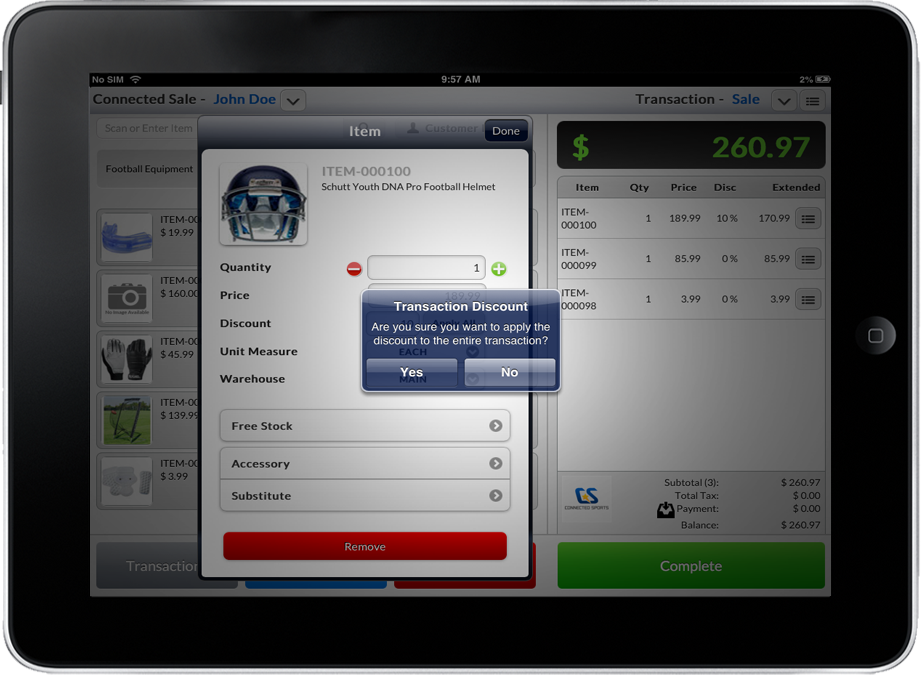
Click Image to Enlarge
- You will then see that the discount has been applied on the sale transaction. You may now proceed by completing the transaction.
Coupon Discount
In this process, you will be creating a coupon with Sale Discount using Connected Sale. To enable the list of coupons applied for a specific transactions, you need to set up show coupon list from the Settings.
ENABLE COUPON LIST OPTION
- Go to Dashboard and then tap on the Settings icon.
- Tap on General button then look of Show Coupon List and then turn it OFF.
- Return to Dashboard by tapping the Back button.
APPLYING COUPON DISCOUNT
- Input the discount percentage in the Discount textbox of the Item Details window.
Click Image to Enlarge
- Input the discount percentage in the Discount textbox.
- Tap on the Apply All button. A confirmation message will appear, click Yes to apply discount to all items in the transaction.
- Click Donebutton to close the window.
Click Image to Enlarge
- You will then see that the discount has been applied on the sale transaction. You may now proceed by completing the transaction.