
Apply Coupons in POS
You can use coupons as discounts to purchase items in the Connected Business Desktop POS. This can be applied to all items in the transaction tape, single items or specific customers. To know more on how to set up coupons, refer to Create Coupons.
To apply coupon discount in a POS transaction,
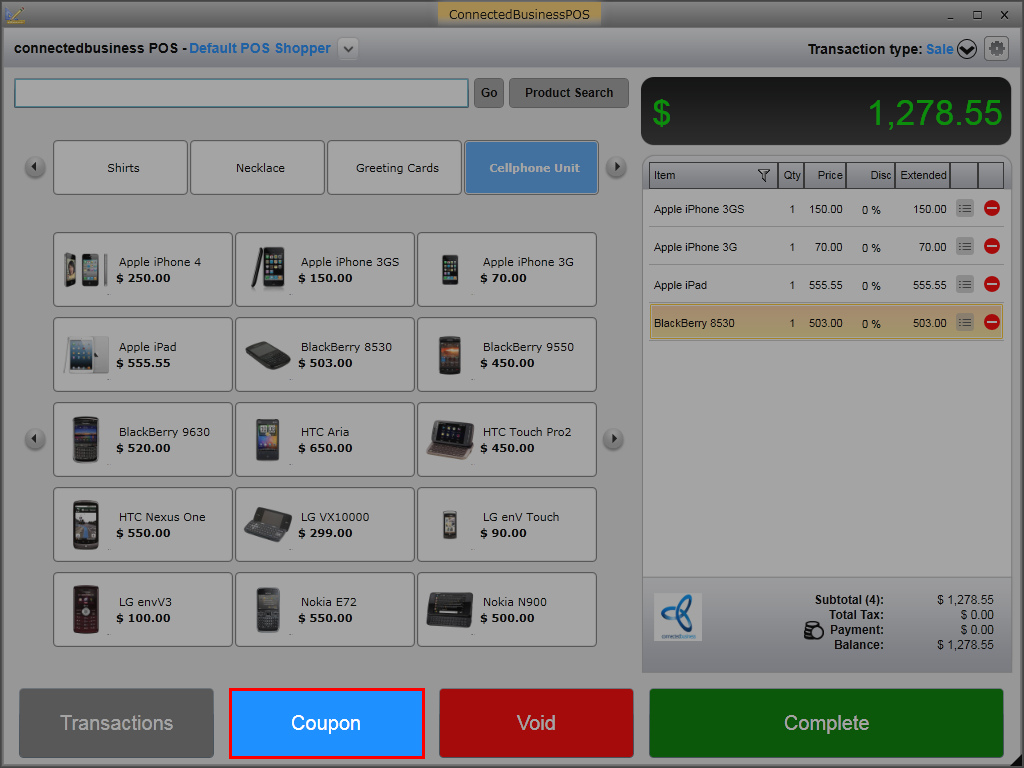
- Enter items for checkout and click Coupon. The Coupon Discount Information window will be displayed.
Click Image to Enlarge
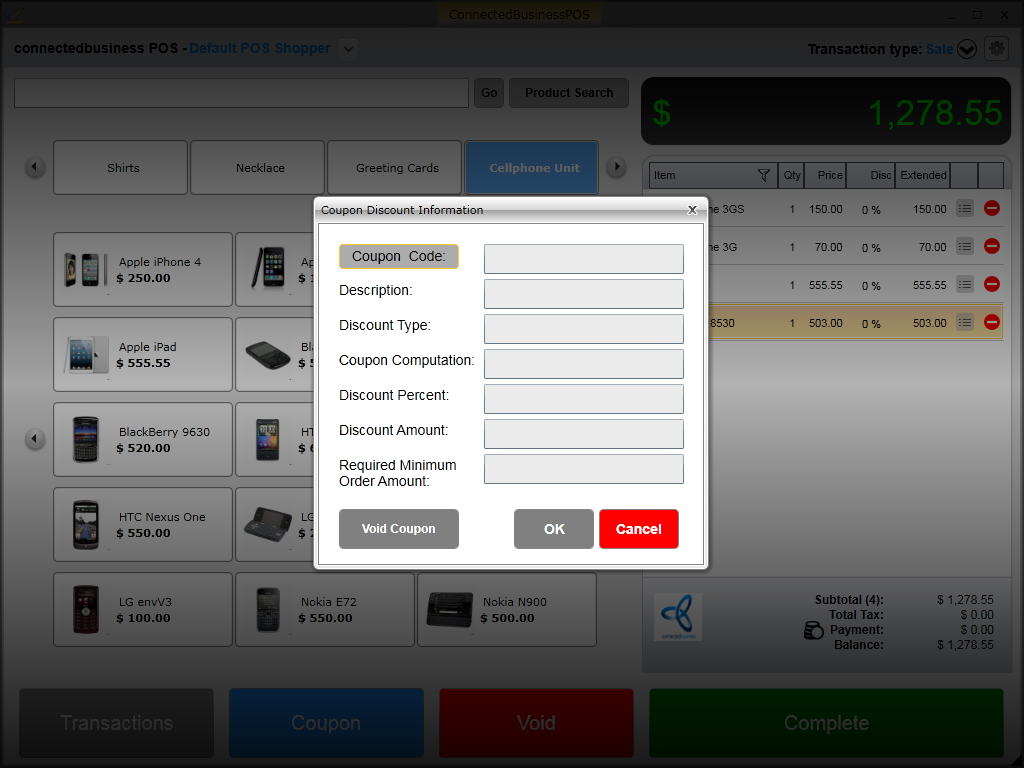
- Click the Coupon Code button and the list of all available coupon codes will be displayed.
Click Image to Enlarge
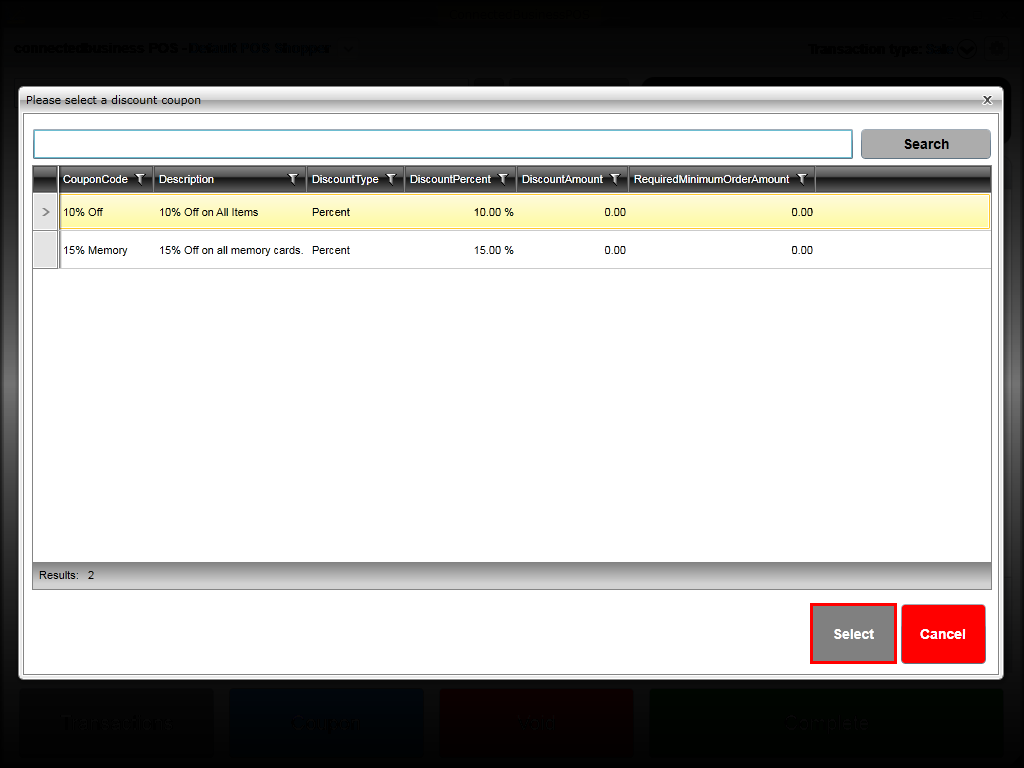
- Select the coupon code to be applied to the transaction and click Select.
Click Image to Enlarge
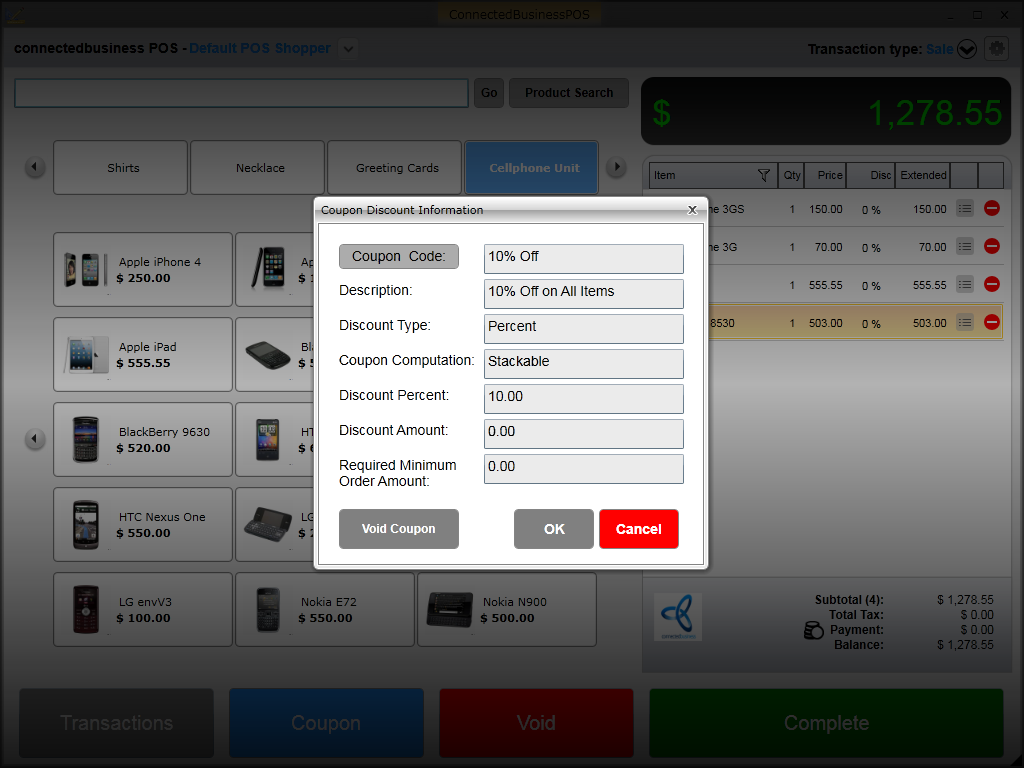
- Upon selecting the coupon code, the fields in the Coupon Discount Information window will be automatically filled with the coupon discount details.
Click Image to Enlarge
Field Description Coupon Code Click this button to select the coupon code to be applied to the current transaction. Description The coupon code description. Coupon Computation The type of discount computation set up for the coupon. This can be set to stackable or compound in Connected Business (backend). Discount Percent Indicates the total discount percent of the coupon code. Will be automatically filled if the coupon discount type is set to Percent. Discount Amount Indicates the total discount amount set for the coupon code. Will be automatically filled if the coupon discount type is set to Amount. Required Minimum Order Amount Indicates the required amount to be purchased before the discount can be applied.
- Click OK to apply the coupon discount. The discount will be applied to the items in the transaction tape. Discounts applied may vary depending on how the coupon code is set up (applied to all items, single item, or specific customer).
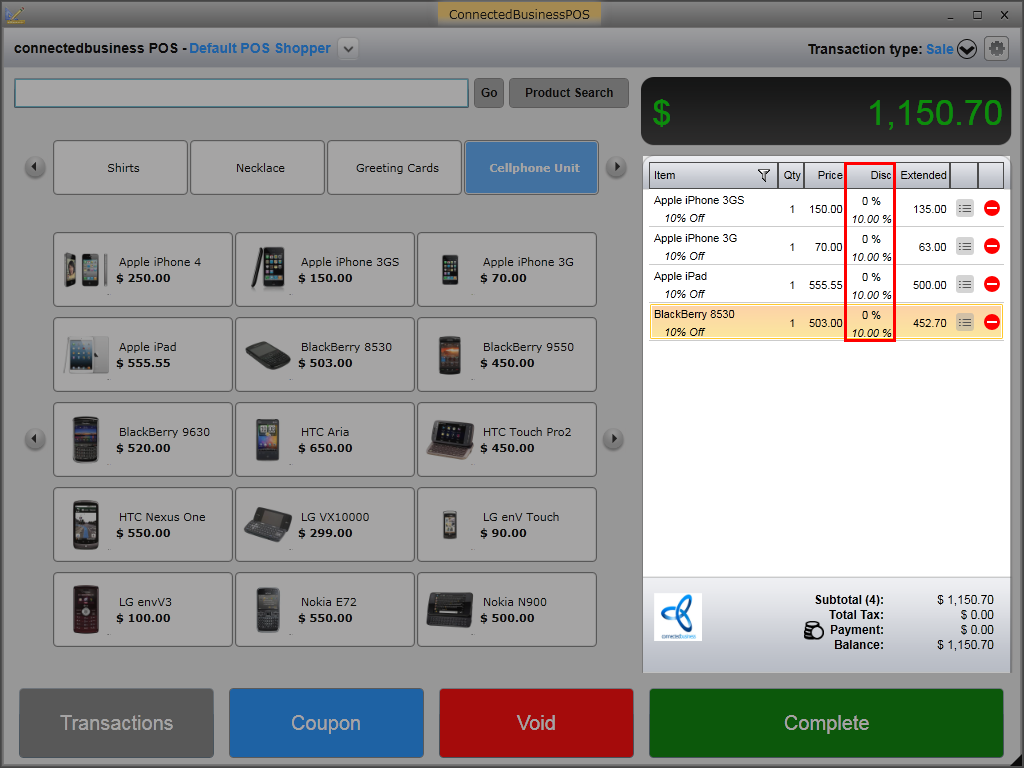
Click Image to Enlarge