
Add Item To Wishlist
If you have not yet decided on checking out the items you want from the webstore, you can first queue them in your Wishlist and check the items out later.
To do this,
- Assuming you have already a webstore customer account and have already logged in, search through the webstore for items you want to put first on the Wishlist.
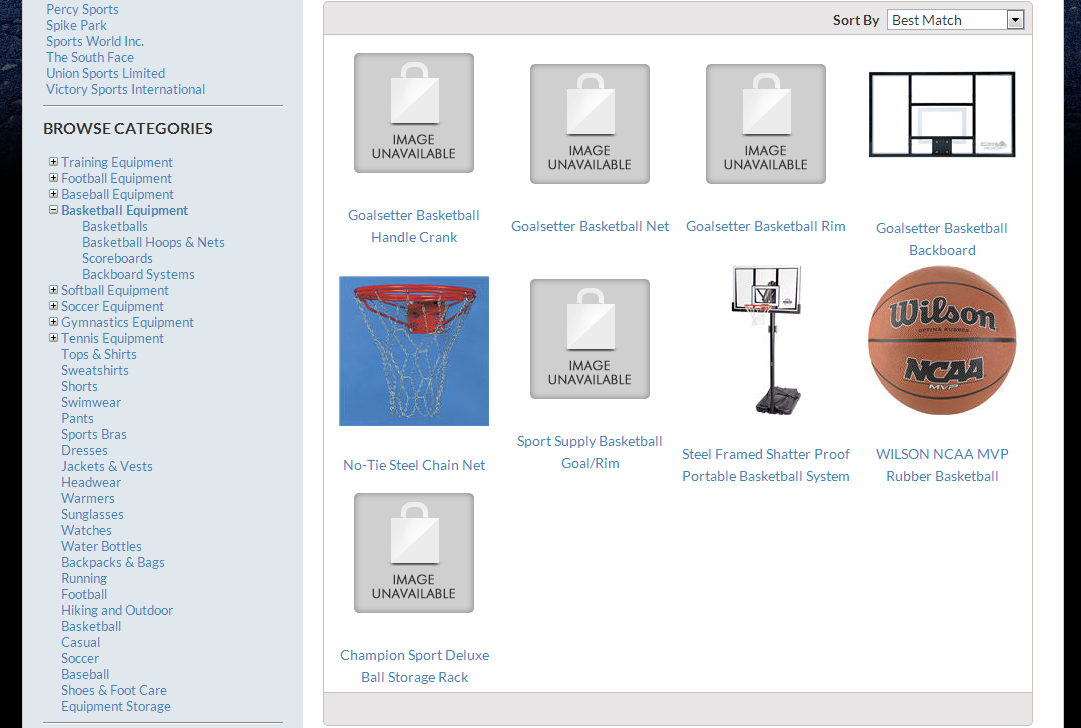
Click Image to Enlarge
- From the item details page you have the option to either check out the item or put the item to your virtual wishlist. In this case, click the Add to Wishlist button.
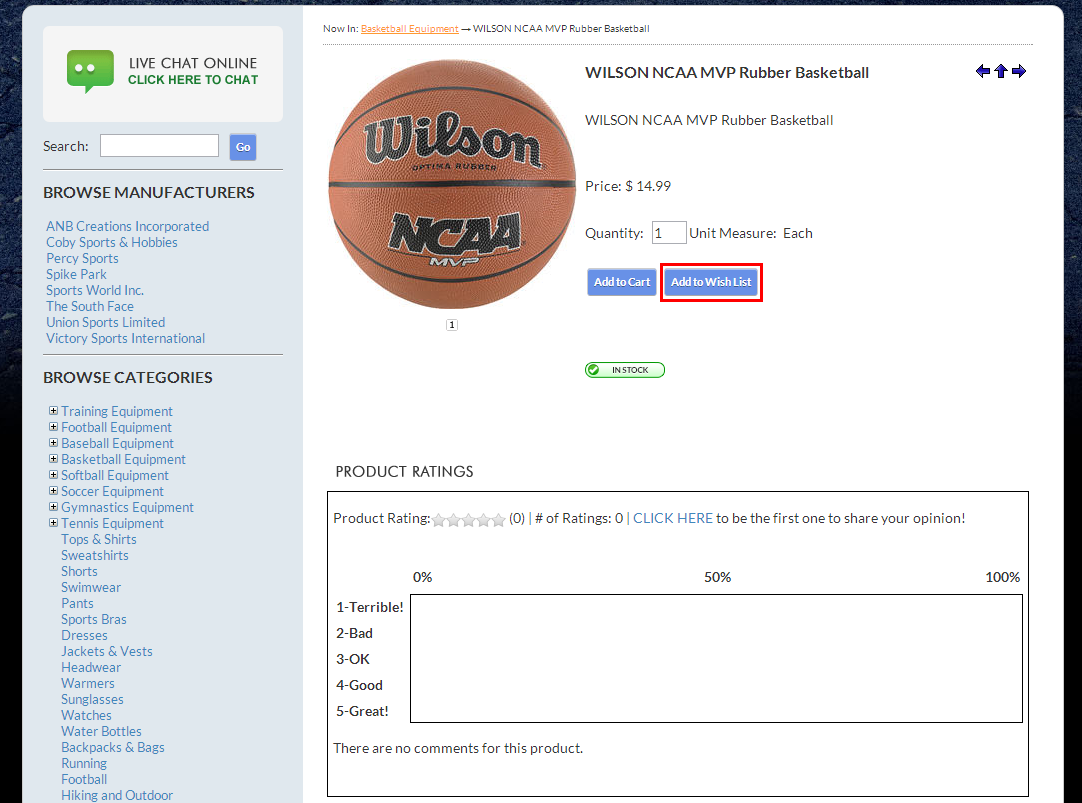
Click Image to Enlarge
- The items will be queued and displayed on the Wishlist section of your account. From here, you may choose to look for more products in the webstore by clicking the Continue Shopping button, or select Move to Shopping Cart to ready the item for checkout.
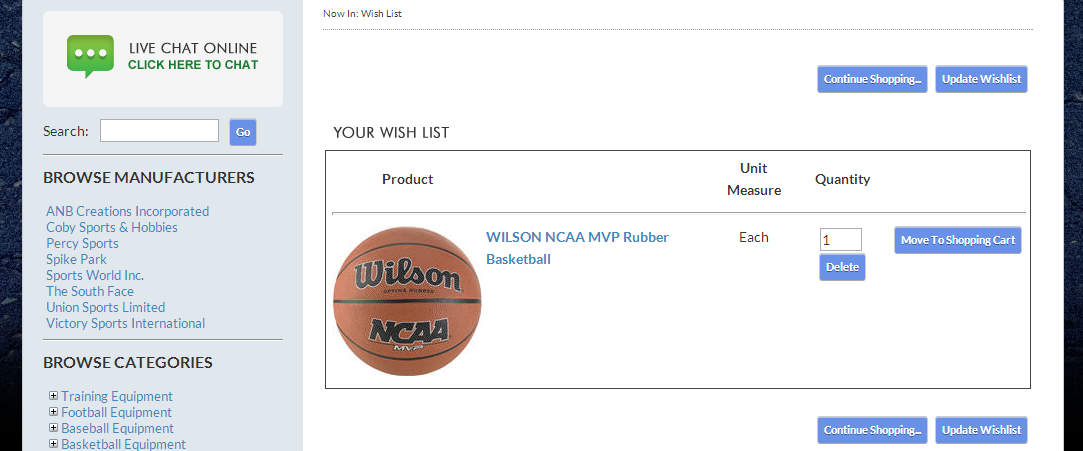
Click Image to Enlarge