
Add / Edit Billing Address
You can add billing addresses and edit existing ones to your webstore account and set a new primary billing address.
This article will describe how to do so.
Add Billing Address
To add a billing address,
- Visit the webstore from your browser, either by running the webstore locally (if you're currently hosting the site by IIS) or typing in the URL in the browser.
- Find the Log In link from the top right section of the webstore site.

Click Image to Enlarge
A Log-in screen will be displayed. Fill-out the Email Address and Password fields in the page that displays next to log in to your account.

If you are using a secure computer, you may leave a check on the Remember Password checkbox so you will be logged in once you access the webstore next time.
- Once logged in, you can add a billing address by accessing your profile page. From the homepage of the webstore, click either your name on the top right of the page, or from the top menu, hover your mouse over the Customer Service menu option and select Your Account.
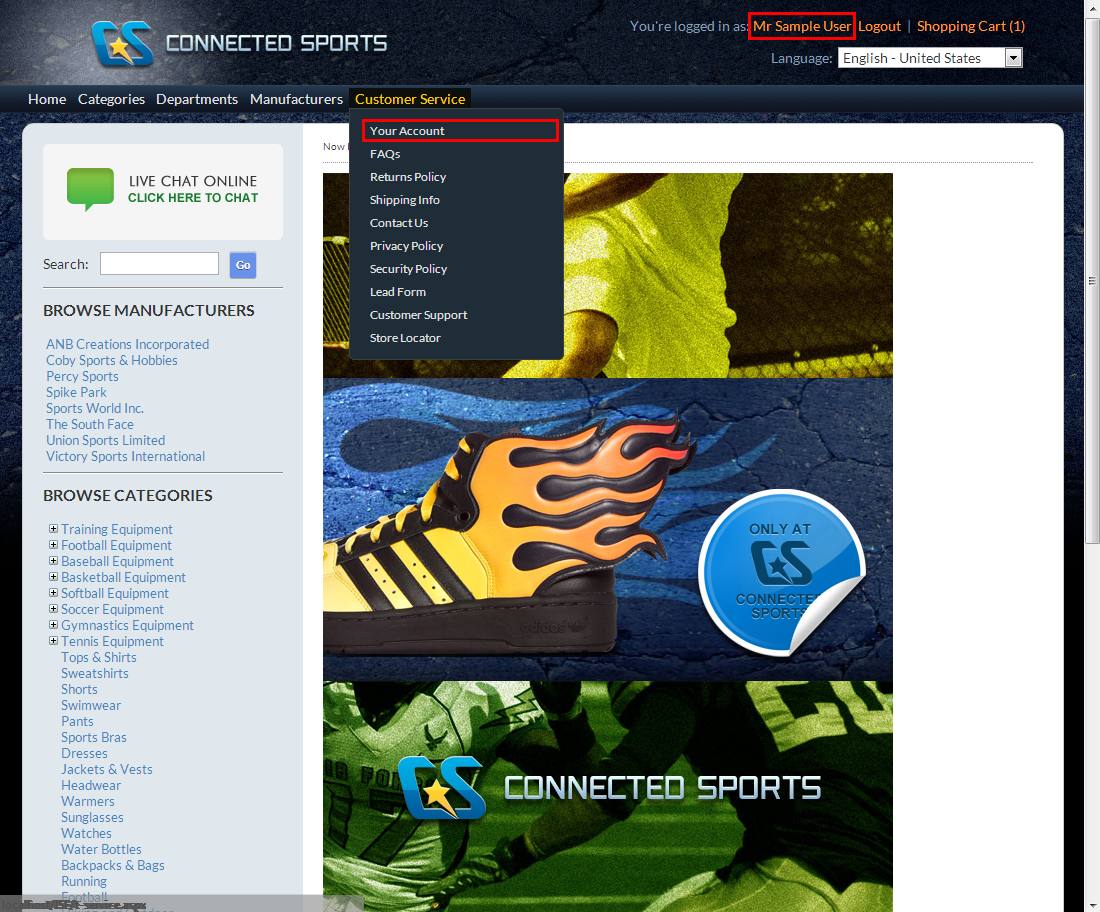
Click Image to Enlarge
- Your profile information page will be displayed. To add a billing address, click Edit from the Billing Address section.

Click Image to Enlarge
- The Billing Address section will be displayed. You can add a new billing address from this page.
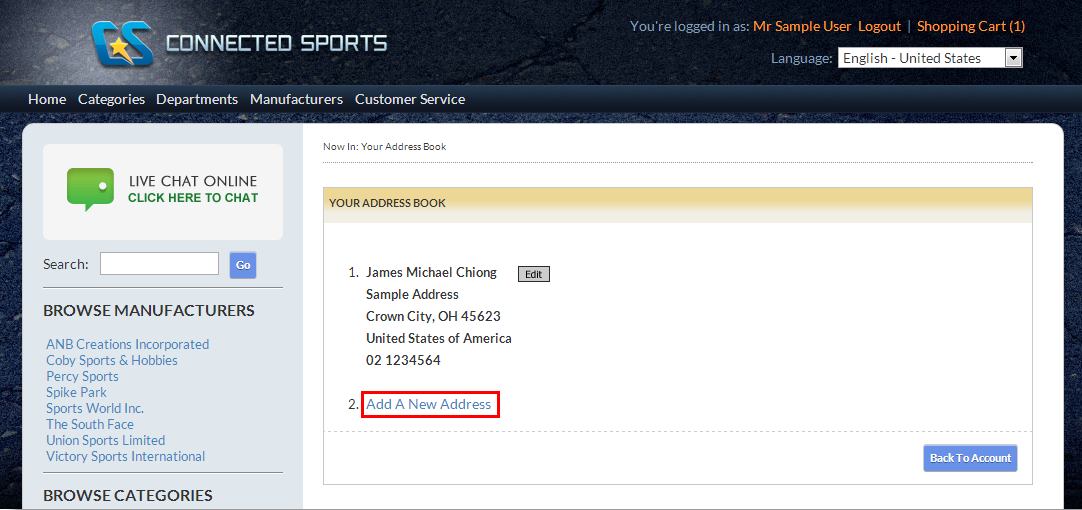
Click Image to Enlarge
- You can fill in details in the next page. Complete filling out the fields and click Save Address to continue.
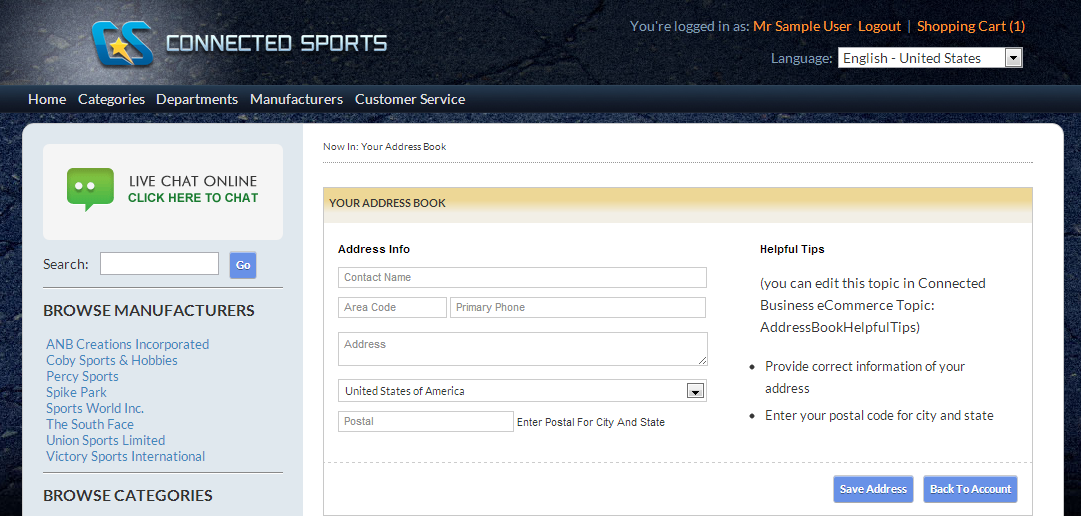
Click Image to Enlarge
- You can define the new address to be the Primary Billing Address from the billing addresses list by clicking on its respective button.
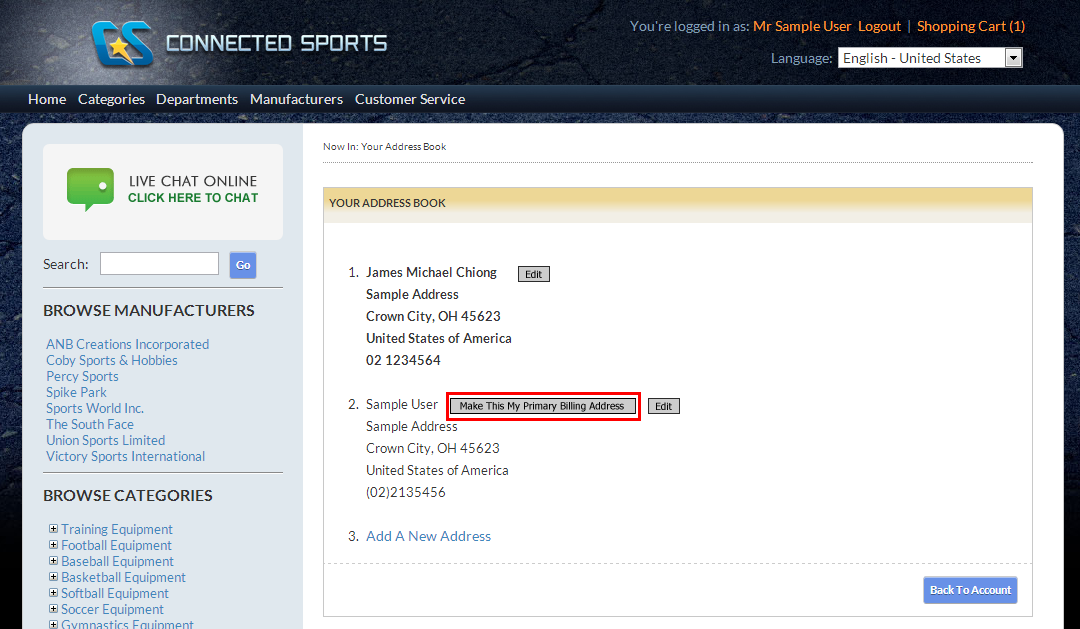
Click Image to Enlarge

Edit Billing Address
To edit a billing address,
- Visit the webstore from your browser, either by running the webstore locally (if you're currently hosting the site by IIS) or typing in the URL in the browser.
- Log In to the webstore site.
- Once logged in, you can edit your billing addresses by accessing your profile page. From the homepage of the webstore, click either your name on the top right of the page, or from the top menu, hover your mouse over the Customer Service menu option and select Your Account.
Click Image to Enlarge
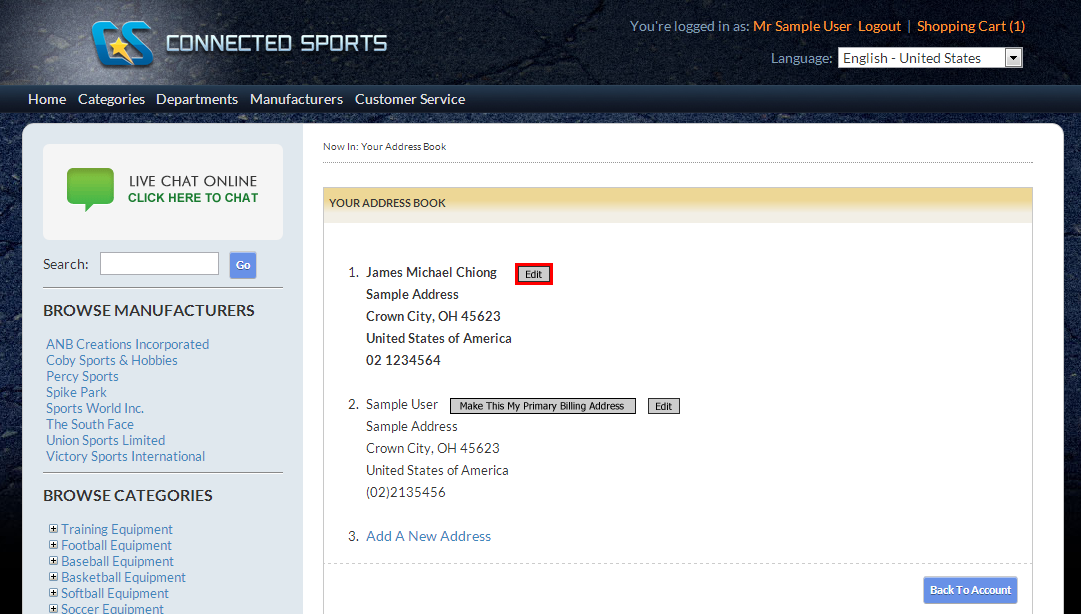
- Your profile information page will be displayed. To edit an existing billing address, click Edit from the Billing Address section.
Click Image to Enlarge
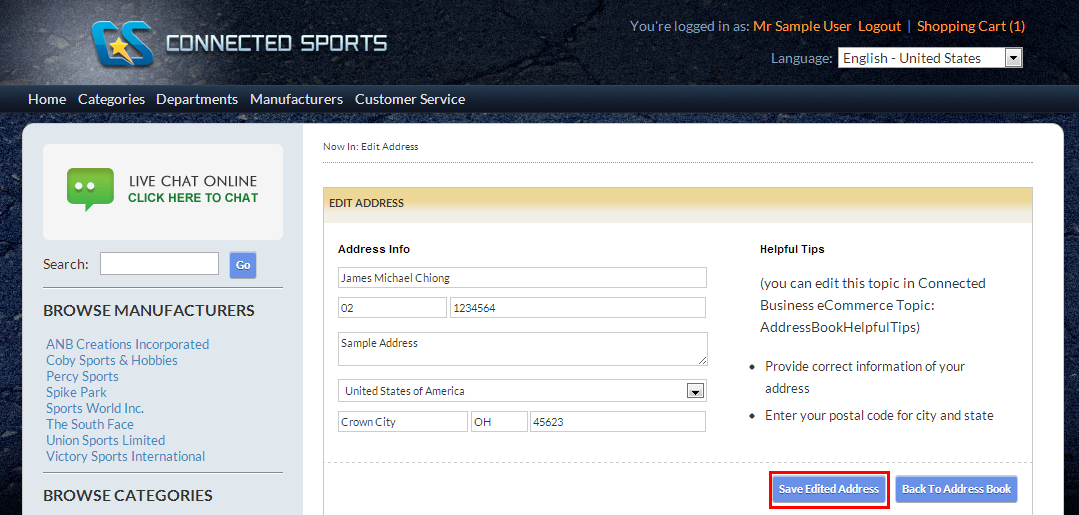
- You can modify the details in the next page. Complete filling out the fields and click Save Edited Address to continue.
Click Image to Enlarge