
Add/Delete Ribbon Menu Items
Learn how to customize ribbon menu options by adding or delete ribbon menu items. Follow the steps below to know more.
Steps
- In the User Role form, select the module that you want to add a menu item option.
- Follow the steps below to create the options for your ribbon menu.
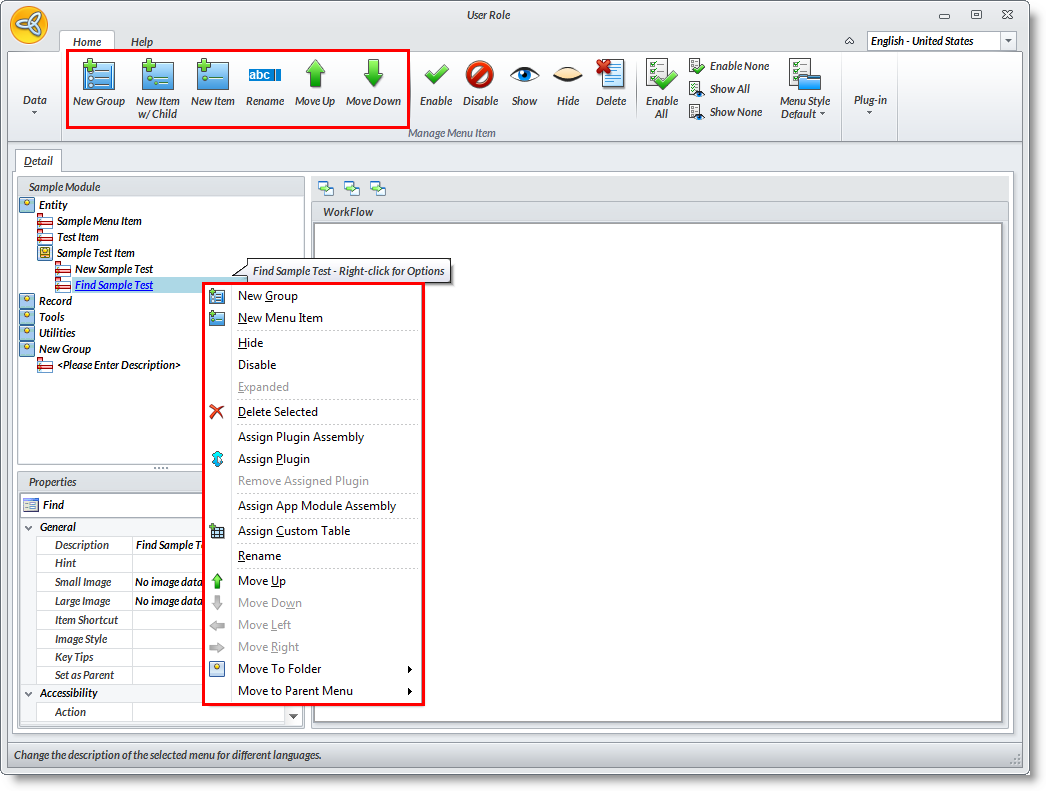
How to... Do this... Add New Menu Page Group - To add a new menu page group, select New Group button. Alternatively, right click to create a New Group. A new group is inserted in the tree list.
- You can change the folder caption to the desired description by right-clicking it and choosing Rename from the menu.
- In the Multilingual Description window, enter the description for the menu item for each language currently used in Interprise Suite.
- Click OK to apply the description and close the form.
Add New Menu Item To add new menu item, select New Item button. A new sub folder will be added in the folder selected. Add New Ribbon Menu Item with Child To add new ribbon menu item, select New Item w/ Child button. A new menu item and a dropdown items will be added in the selected menu page group. Remove Ribbon Menu Items To show all or hide all menu items, click Show All or Show None button from the ribbon menu. Undo an Action To revert back to the previous changes made, click Undo button.
