
Enable Blind Ship in Shipment Transactions
This article discusses the Blind Ship feature in Connected Business.
The Blind Ship feature allows you to change the Ship From name to your customer's name without changing the Ship From address.
If enabled, the Ship From name indicated in the Shipment form will be your customer's name but the return address still indicates your warehouse shipping address. In the shipping label, it will look like the product was shipped from your customer's "address" when in reality it was shipped from your warehouse.

The freight calculation will still be based on your warehouse shipping address and not on the customer’s address.
This feature is useful to those retailers who do not want to divulge the shipping source information for their products.
Enable Blind Ship
If a customer requested for a shipment to be blind shipped, make sure that you have the recipient’s shipping information.
To enable blind ship in your transactions, follow the steps below.
- Create a sales order or sales invoice for a customer.
- In the SO /SI form, tick the checkbox next to the Blind Ship option.
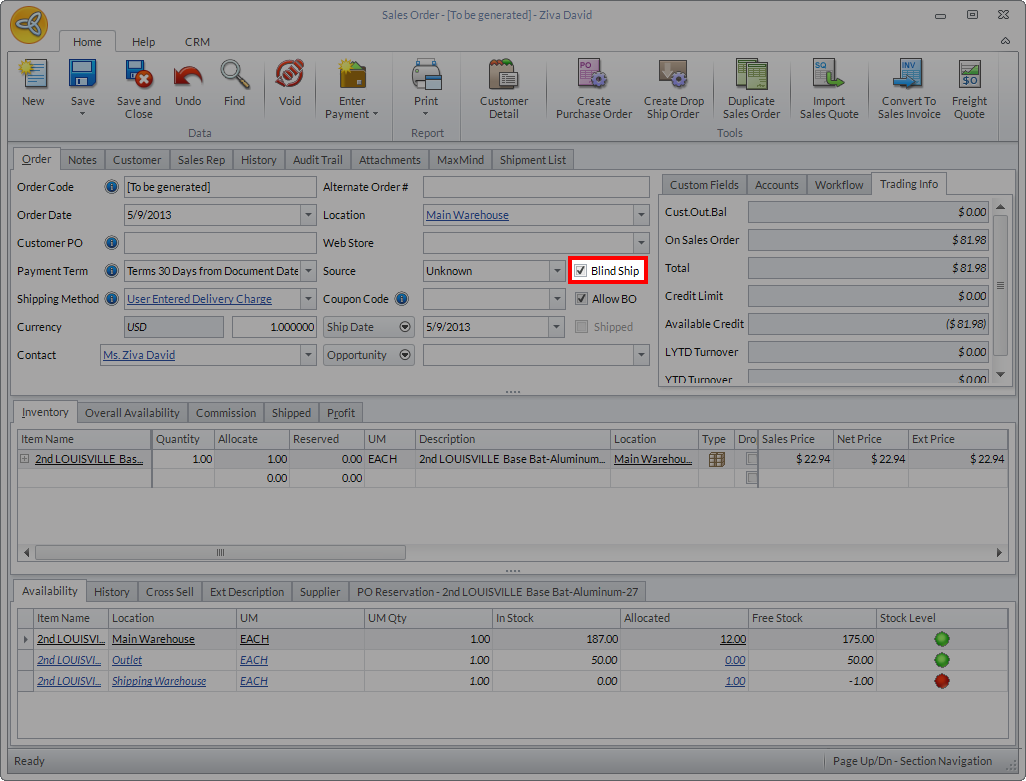
Click Image to Enlarge
- Save the sales order or sales invoice.
- Open the shipment form for the SO / SI you created by going to Shipping module > Shipment > From SO / From INV.
- In the Shipment form, notice that the name indicated in the Ship From field is the customer name with your company’s warehouse address.
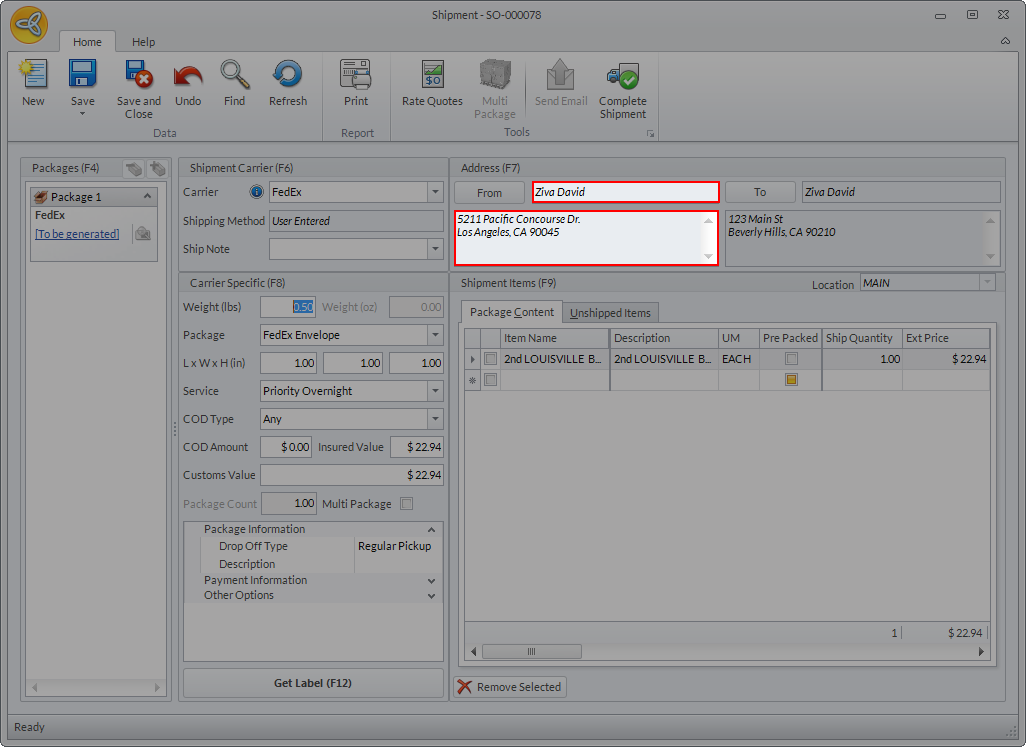
Click Image to Enlarge
You can also change the Ship From information by clicking the FROM button. However, doing this will also change the shipping address to the customer’s actual address.
- In the Ship To field, the name indicated will still be your customer’s name but you can change this by clicking the TO button and the Shipping Address form will be displayed.
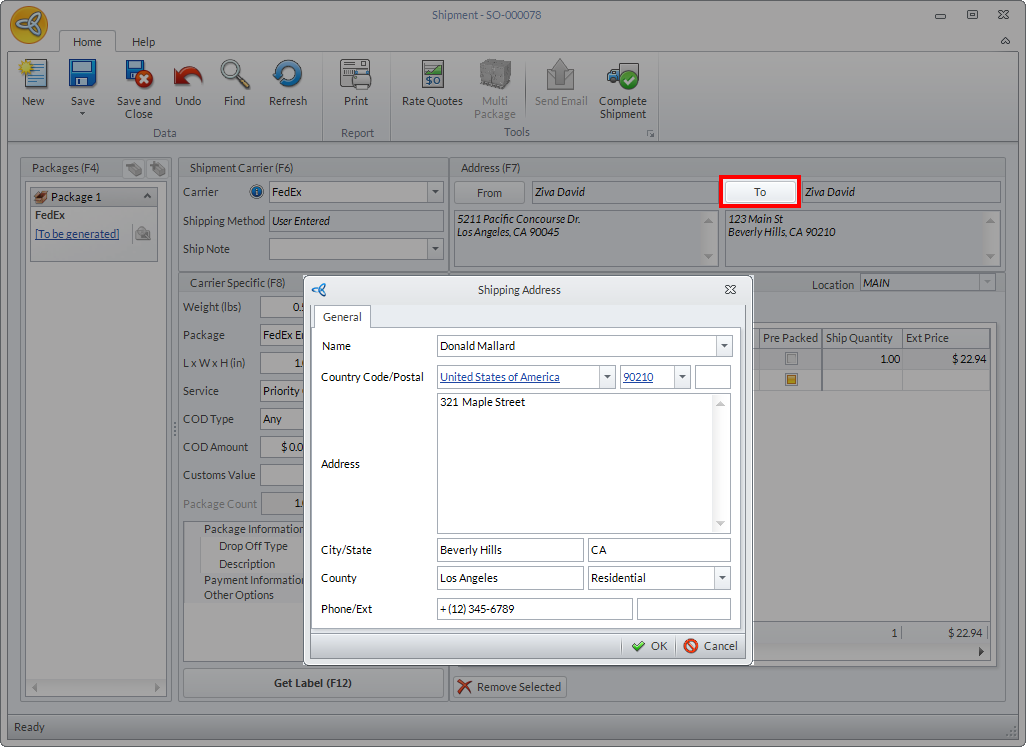
Click Image to Enlarge
- Enter the recipient’s shipping information and click OK.
- After reviewing the shipping information, click on Get Label to process the shipment.